PC Supporter: We are writing reviews & overviews about latest Technology, Gadgets, Social-networks, HP Printers, Operating Sys, PC Games & Wallpapers

Tuesday, 18 October 2011

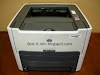
How to Install Hp LaserJet 1320 Printer in Windows 7?


How to Install Hp LaserJet 1320 Printer in Windows 7?


Is Hp LaserJet 1320 Printer compatible with Windows 7?


Yes it is!

hp laserjet 1320 Printer Supporter Windows 7


Today Windows 7 is the most popular Operating System using in Homes & Offices all over. In early days due to non-compatibility and support to many Devices (like Printers, Scanners etc.), Windows 7 was not a Primary Operating System according to Professional�s remarks.


Many companies made their devices compatible to this New Operating System with updating their Software and Drivers for Devices like Printer, Scanners etc., some of other companies made brand new Devices for new operating system. But some devices were far behind due to non-compatibility with Windows 7, and users were waiting for new release of drivers.


Hp LaserJet 1320 is also one of the device, we still hoping from Hewlett Packard to launch updated drivers for 1320, to make it compatible with Windows 7.


Today I am going to tell you how you can make your Hp LaserJet 1320 fully compatible with Windows 7 (Ultimate, Professional and Home Edition), without installing any 3rd Party software or drivers.


So lets follow me:- (I am using Windows 7 Ultimate, and I tried it on my own Operating System only, so keep it in mind)


1.   Connect your printer (HP LaserJet 1320) with your PC, and turn it ON.


2.  Do not browse or insert Printer Driver Disk into your PC Rom (CD-Rom or DVD-Rom) for installation from Disk.


3.  Go to Start and click on Devices and Printers on the right side.


Start Menu

4.  A window will appear showing all connected or installed devices in your Windows, with a yellow (troubleshoot) icon on the right down corner, you also find your Hp LaserJet 1320 Printer in the list but you should click on Add a Printer button (at the upper left side of the same window) to proceed to installation.

5.  A new dialogue box will appear, asking you �What type of Printer do you want to Install?�, and click on �Add a Local Printer�.

6.  Inside another dialogue box, click on drop down button �Use an existing port�, and click on DOT4_001 (HP LaserJet 1320 Printer), and click Next.

7.  Another box will appear asking you �Install the printer driver�, here you will find two column lists, �Manufacturer� on the left and �Printers� on the right side.

8.  Inside Manufacturer column, scroll down and select HP, on the right side column, you will find Plug & Play printer�s list (which are compatible with Windows 7).

9.  Inside HP Printer�s list, scroll down, find HP LaserJet 2200 Series PL5 and click on it to select, and click Next.

How to install Hp LaserJet 1320 Printer in Windows 710.  Inside another box, write your Printer Name (Hp LaserJet 1320 Series PCL5) and click Next to print a Test Page from your Hp LaserJet 1320 Printer.

If you find it helpful to install your printer, please share it, so others can get some help on their behalf.

For any questions regarding to PC Help, please write your Questions in the Comments below.


For further Information about how to Install HP LaserJet 1320n and 1320tn on Networked Computers please contact HP Support Center.


Sunday, 16 October 2011

Samsung RC520-S02UK | PC Supporter


Samsung RC520-S02UK Laptop Computer review � PC Supporter


According to owner of Samsung RC520-S02UK, they are mostly happy with its battery life and keyboard size mostly, others are excited about Extreme & Quick Performance of the RC520. Screen size is still not yet discussed by any of these respective owners, but the nVidia GeForce GT520M chip with 1 GB of memory & 6 GB of RAM can hold you entertained,


while playing games, editing or watching Full HD videos. With high resolution WXGA and extremely graphical quality of its 15.6 inches of screen, you can see all the stuff around the corners while working on software or games, requiring a much bigger area to show its menus or items. Some of the latest games require higher resolution to be played smoothly on nVidia Graphic Chip and Samsung RC520-502UK having no problem to play efficiently �Sims, Empire & Shogun II Total War� with high graphics settings, according to owners of the Samsung RC520-S02UK.


Samsung RC520-S02UK Pictures


Alongside playing games and watching movies on Samsung RC520-S02UK, some owners write their comments on large data storage space (750 GB) that �The large hard drive (partitioned) aids simple backing up of files etc; and plugging in an old hard drive worked perfectly to back up several thousand pictures.�


The Intel Core i5 (i5-2410M) Processor (2 Cores), with support of 6 GB of RAM boost the startup screen, and you no need to wait for startup if you ever shut it down.


Complaining about Samsung RC520-S02UK Laptop�s weight, an owner wrote that �Slightly heavy so its slightly uncomfortable if you want to lay it on your lap.� But the weight of this model should eventually acceptable for your laps comparing to other models of Samsung.


Samsung RC520-S02UK having good sound quality. It also support upto 4 USB ports, external USB Keyboard, Mouse & Pen or Touchpad devices. 


We also find some other news from owners of Samsung RC520-S02UK related to its Good trackpad (some can be sticky or not feel nice) & soundless Processor & body fans.


A complain of an owner, related to unavailability of FireWire, he said �No Firewire Connection (woulda been nice).� But as all the devices don�t have 100% of all features, in my review, I considered that the Samsung RC520-S02UK is a best computer for PC Gamer and Office worker, both of the users.


Features:


Released Date 01 Aug 2011
Screen Size in inches

Screen size is measured diagonally from corner to corner
15.6 Inches
Operating System Windows 7 Home Premium
Ram in GB 6 GB
Number of Cores 2 Cores
Hard Disk Capacity in GB 750 GB
Screen Resolution (pixels) 1280x768 (WXGA)
Processor Brand Intel
Processor Core i5
Processor Number i5-2410M
Processor Speed (GHz) 2300 GHz
USB Ports 4
Integrated Webcam Yes
WiFi Yes
Bluetooth Yes
Fingerprint Access No
Remote Control No
DVD Writer DVD-Writer
Card Reader 4 in one Card Reader
Weight 2.48 kg
Graphic Card Chip nVidia
Graphic Card Chip Model GeForce GT520M
Graphics Memory 1024 MB (1 GB)
Firewire No
TV Output Yes
Aspect Ratio 16:9
Video Editing Card No
Hard Drive Type Hard Disk Drive
TV Card No


Friday, 14 October 2011

Meaning and importance of computer recycling

Meaning and importance of computer recycling

Computer technology is changing very fast. Today the need to recycle computers and computer parts is something that is very common. Many waste disposal companies will simply take your computer to the tip where it will end up in landfill which is very harmful for the environment. If your computers contain sensitive information it is important that you take them to an authorised recycling plant who can issue you with a destruction certificate to give you the peace of mind that your data doesn�t fall into the wrong hands.

Technology is changing the way we live. This change is constant and very powerful. You simply cannot escape being changed by technology but the interesting fact is that the technology itself is unable to resist this change. It keeps on changing itself. Everyday a new technology comes and replaces the old one. Things we have been using are fast becoming obsolete and new things are taking their place.
computer-recycle | Inside PC
The change in the field of computers and information technology is even more apparent when compared to other fields. Computers have completely changed during the last decade and have become very fast and powerful. They have become an essential part of our day-to-day lives. The extensive innovations and new inventions in the field of computer related parts has made this change possible but it has given rise to another serious threat; a threat to our environment.
The disposing off of obsolete and outdated computer parts has become a problem with so many new things coming in and so many old ones becoming useless. Proper disposal of these components has become very important and hence recycling of these products has become necessary. Computer recycling involves recycling of computer hardware such as Printed Circuit Board (PCB), add-on cards, storage devices, power supply, and external and output devices like monitors and printers.
Mother boards and daughter boards such as sound cards, video boards, LAN cards, modems, etc come under the category of PCBs and are recycled for making new components. All USB cards and memory drives along with Bluetooth fall under the category of add-on cards are recycled too. Computer recycling of computer drives and storage such as CD Rom drives, DVD Rom drives, Blue-Ray drives, floppy drives, hard drives, etc in done for making new components so that these obsolete components do not become a problem for our planet.
Power supplies from the inside of the CPU along with the external power supplies for computer and related devices is easily recycled and turned into other components for fulfilling the requirements of the electronic and computer industry. Printer recycling and monitor recycling are also done for achieving the same objective of protecting the environment from getting damaged.
The precious metals contained in many computer parts are taken away and recycled for getting copper, gold, palladium, and silver. There are many recycling agencies which are in the business of recycling computer components and are helping in protecting our environment.

Thursday, 13 October 2011

Registry Repair - The Advantages Of Registry Cleaners


Registry Repair - The Advantages Of Registry Cleaners


These days registry cleaner utilities tend to be used more and more frequently. This way, the registry is maintained in a good condition and the computer remains healthy. As computers represent the most important tools of this century, allowing them to run as fast as they can is very important. Using the computer leads to the creation of a greater number of registry entries

. The registry cleaner tools keep the registry in shape by eliminating the invalid data. Besides information that is stored permanently, the Window registry also contains temporary data that is created by the programs on your computer. These temporary entries are not deleted automatically by your operating system. The computer starts to move slower as the number of the invalid entries grows.

Advantages of Registery Cleaner | Inside PC


Using a Windows registry cleaner tool is imperative, at least once in a while. When a program is uninstalled or deleted without uninstalling, certain entries remain in the Windows registry. The utilities remove the invalid entries and keeps the computer in optimal condition.


The Main Advantages

Installing and uninstalling software, as well as deleting programs without fully uninstalling them, leaves behind useful registry entries. In addition, if the computer has Spyware software, or if there are drivers that are not used, invalid registry entries are present. These problems accumulate and, in consequence, the computer becomes slower in time. In this moment, a tool to clean and repair the Windows registry becomes useful. Scanning and removing the invalid entries once in a while helps the


system to run at its full power.

The new generation of registry cleaner utilities combines a series of enhanced options. They are able to scan the registry and delete the invalid entries, while leaving the valid entries intact. The performance increases considerably after taking this action. Next, these tools may present an option that resembles of the De-fragmentation of the files. The empty spaces are accumulated and the fragments are eliminated, facts which also lead to an improved performance. Some of these tools may be able to clean the keys that are untraceable, usually. This type of entries contains harmful codes that are utilized by viruses, worms and Trojans. Not at last, the majority of the best registry cleaner tools offer the ability to schedule the registry scanning and the removal of the invalid keys.


When an operating system is freshly installed, the registry does not present any problems. However, in time, as programs are installed and uninstalled, or simpler, just used, the number of the invalid entries becomes greater. The performance of the whole system is affected this way. When this happens, people may discover how useful a good 1st registry cleaning software is. These tools are able to eliminate invalid entries and to boost the speed of the computer.


How To Fix Corrupt Registry Files

How To Fix Corrupt Registry Files

The information related to your hardware and software is contained in the files of your Windows registry. These comprise of the operating system that you are running in your computer, the application software that you are having, the preferences that you have set and your profiles, and the association between the files which provide information relating to the files that are being handled by each of the programs that you have in your computer.

Let us find out as why your Windows registry needs to be repaired, and how this repair is carried out.
registry-booster-currupt-registry-files-inside


There are several software tools available to repair and correct your registry problems, and the link below provides you with the address of the webpage where you can find a selection of the software tools that would help you to solve your problems in your Windows registry. Windows provide you with the facility to repair and clean the registry manually. You can get to the registry of your computer by using the program regedit.exe or by typing reg.exc at the command line provided by your windows software.


This facility is available in practically all the Windows versions, including Windows XP. It is not desirable that you try to repair or clean the registry files manually, for, if any of the files gets damaged or accidentally deleted, your operating system or the application software would not run anymore. Manual registry repair or cleaning is not recommended even if you have backed up your registry beforehand.


Although you can use the programs to inspect the registry contents, Microsoft does not recommend that you actually edit the contents, since one incorrect change may prove to be disastrous. In case you are trying to repair the registry manually, and something goes wrong, and your back up does not work either, you will need to completely re-instal your windows operating systems.


It is always recommended that you use specialized software that was designed and developed to repair and clean Windows registry. Now, let us find out what are the reasons that prompt registries to be repaired, and why does it become necessary.

NEXT
There are many varied reasons which require the Windows registry to be maintained. When the registry develops faults, your Windows operating system and other application software may not run correctly. A corrupt registry or loss of files in the registry may cause your computer not to boot at all. There are circumstances when you have removed your old application software which you used before. There may be files for the old application software left in the registry and because of those, your system gets slow. The system will be affected adversely as far as its stability is concerned, and at times freezes your monitor screen, or you may see a blue screen with the computer hanging up and stopping all your work. As you go on using your computer, the size of the registry keeps on growing, and this growth crosses the limit at one point.


As the registry grows in size, you will find that the performance of your computer is slowly degrading. You may find that the system becomes unstable with the installation of hardware in your computer. Here you just might need to get your registry back in original shape before you can trustfully install the hardware that you have been trying to do.


The encouraging part of all this is that you have a wide choice of registry software programs which will automatically clean and repair the registry in your system very rapidly, removing all unwanted files and repairing any which have been corrupted. Registry repairing and cleaning software would provide you with the facility to scan your computer and present you with a list of your registry errors. Such software tools are called registry cleaners or repairers. These are very easy to install and to use to maintain the registry from time to time. Good Registry repair software can clean and repair your Xp or Vista registry in just a few minutes. The repairing and cleaning of the registry will provide you with amazing results when you start using your computer after the registry has been scanned and repaired by the software.


If you're experiencing or suspecting you have Windows registry problems, you have no time to lose. Therefore we provide you with a free tool to detect all the registry problems on your computer. All you need to do is to download the software and scan your computer for the registry failures, after which you can easily run the software to repair your registry problems.

HTC Mobiles: Everything is in your hands now

HTC Mobiles: Everything is in your hands now

HTC mobiles, are known for its touchscreen interface and user-friendly features. The list of handsets designed and launched by the HTC gained popularity for their amazing form and functionality. This brand has launched several handsets every year in the market. Mostly, HTC mobile phones are enhanced with the web and multimedia features.

Besides the Microsoft Windows mobile operating system and 3G capabilities, HTC phones hold several other unique features such as Windows Media Player, high quality camera, GPRS, EDGE, Infra-red and Bluetooth connectivity. Among the several models of HTC, the HTC TouchHD, Touch 3G, Touch Pro, Touch Diamond, HTC P3470, HTC P3350 and HTC Advantage X7500 are some of the best handsets, which are highly in demand in the market. Now, we shall discuss the features of the HTC Touch HD.


HTC Mobile Phones - Inside PC


In the series of the latest HTC mobiles, the HTC Touch HD is one the best handsets around the world. It has a large 3.8 inches TFT touchscreen with total support of 65K colours and provide a screen resolution of 480 x 800 pixels. The handset comes with many amazing features such as TouchFLO 3D finger swipe navigation, an accelerometer sensor for auto-rotate screen control and Touch-sensitive navigation controls. This handset comes with a 5 mega pixels autofocus camera, which provides sharp and crystal clear still pictures with an image resolution of 2592 x 1944 pixels. The phone also facilitates video recording option in CIF format. It also has a secondary VGA videocall camera which would permit the users to make face-to-face video calls around the world without any interruption. This is a Microsoft Windows enabled mobile phone. Its integrated miniUSB and Bluetooth v2.0 with A2DP wireless technology would let the users to share multimedia files with other Bluetooth enabled devices at high speed.


The HTC P3400 is one of the best HTC mobiles, which is available in the present day market. This is an elegant and good looking mobile phone, which comes with many easy-to-use imaging and multimedia functionalities. This is a lightweight handset and weighs just 130 grams. It comes with a 2 mega pixels camera that delivers superb quality still pictures with an image resolution of 1600 x 1200 pixels. Its Pocket Office functionality also allows the users to view and edit office documents without any hassles. The users can also expand its external memory with the help of a microSD (TransFlash) memory card. Moreover, this is a high-end mobile phone in the present day market.


Hence, HTC mobiles are the best for all kinds of mobile phone users. HTC mobile phones are the latest technology handsets with superb functioning and are very helpful in professional as well as personal purposes.

Helpful Laptop Handling Tips

Helpful Laptop Handling Tips

A lot of busy-bodies in this time and age have a dependable handy dandy laptop that they carry everywhere they may go. It is expected that these are brought with them not only in the four walls of the hectic office but also at home where they can check their emails whether personal or business anytime or at their favorite cafe while sipping that fully bodied aromatic cappuccino.

You can be sure that laptop would never be absent during those critical business meetings where they can typically type in their observations and comments without much use for a notebook.


Laptop Handling Tips

For those laptop laden individuals perhaps one of the issues of concern and anxiety is on the usage of this nifty device. Not that it is not all that useful as it advertises but because the laptop is not actually ergonomically friendly. It has been said that the computer has basically one ergonomic requirement and that is that its screen and its keyboard be separated to make the user more at ease and relaxed when typing in those words or numbers. It was in the late 1970's when computer users finally had enough of musculoskeletal discomfort and decided to write up the guidelines stating forth that the keyboard and the screen be distanced away from one another from that moment and onwards.
Perhaps the best defense against a sore neck or back or cramps on the hands and wrists is to make sure to maintain good posture when using a laptop computer. For occasional users, it is advised that you go for a comfortable chair where you can sit your back in. To avoid wrist pains, it is better to place the laptop on your lap as this is the most neutral location. Make sure to position the laptop in an angle where you can see the screen comfortably without having to twist and turn your neck in to view it.


More so, ease and comfort is of greater deal for those full time users of laptop computers. And if you are one who use one as a main computer then do so to position the laptop on a desk where you see the laptop screen without craning your neck. This can be achieved by placing the computer on an elevated surface or you could make use of a computer monitor pedestal for support. It is appropriate that you use a separate keyboard and mouse which can be easily set up at the back of the laptop or through a docking station. Utilize an adjustable position mouse platform for greater ease and efficiency. For wrist, a negative tilt keyboard tray would be a great help.


It also helps to know your user concerns and issues before you purchase your laptop. This can include your laptop dimensions and weight. Think of the places where you will be working on your laptop on the issue of dimensions. Small sizes could work better in almost all places as compared to the large ones where you could have difficulty fitting in the space on your car or train seat. Weight is a big deal if you travel or go about a lot. Lugging a heavy laptop is not really a fortunate thing. So if you are always on the move, think small.

Article Source: http://www.tips.com.my

Social Links