PC Supporter: We are writing reviews & overviews about latest Technology, Gadgets, Social-networks, HP Printers, Operating Sys, PC Games & Wallpapers

Showing posts with label Windows 7. Show all posts

Sunday, 29 June 2014

How to Allow or Block a Program through Windows Firewall


Today I will tell you how you can allow or block a program to be connected to the internet, from Control Panel but first we should know :-


Why do you need to block a program to be connected to the Internet?


Well, answer is so simple, "Because I dont want to update this Program anymore from its server on the Internet." In other cases, when you crack a Software or a PC Game or download a crack for your favorite PC Game, most of the times you will see a *.*txt file inside that Crack folder giving you instructions how to install that Game. And when you see "Block this game to be connected to the Internet from Control Panel > Windows Firewall.


If you are using your PC at Home for playing games in free time, very little chances you have installed any Antivirus software in your PC or if you are using a paid version of Antivirus software, you will open it mostly once in a week. But I would suggest you should open and read what's inside settings or inside advance settings, but never try to change any settings you are not familiar of.


If you look closer inside your Antivirus settings you will find the exact settings of allowing or blocking a program from Internet. But here I am showing your the same settings from Control Panel, in case you don't have any Antivirus Installed.


A look at my PC settings first, I am using Windows 7 Ultimate with AVG Free Antivirus Installed. Don't worry if you are using Windows 8 or 8.1 or any version of Windows 7, all you need to do is to find where that Control Panel is...


Follow me if you are using Windows 7.


1. Click Start


2. Type the word "Allow", you will see "Allow a program through Windows Firewall" on the top, press Enter or click on it.


NOTE: If you are using Windows 8 you can still find this settings under Control Panel.


3. This setting will be opened, where you can easily check the boxes to allow or block a program through Windows Firewall. In case you aren't able to click the boxes, make sure you clicked the "Change Settings" button (showing on the top right in the picture).


This is all done, once you blocked a program through Windows Firewall it will not be able to connect to internet anymore, and will not be updated.


As I mentioned before, you can also block a program through your Antivirus settings, if you have one.


Thanks for reading, your feedback will be appreciated.


Thursday, 8 May 2014

How to Install HP LaserJet 1320 Printer in Windows 7?


How to Install Hp LaserJet 1320 Printer in Windows 7?

Today Windows 7 is the most popular Operating System using in Homes & Offices all over. In early days due to non-compatibility and support to many Devices (like Printers, Scanners etc.), Windows 7 was not a Primary Operating System according to Professional’s remarks.
Many companies made their devices compatible to this New Operating System with updating their Software and Drivers for Devices like Printer, Scanners etc., some of other companies made brand new Devices for new operating system. But some devices were far behind due to non-compatibility with Windows 7, and users were waiting for new release of drivers.

Tuesday, 16 April 2013

Control Your PC from a Mobile Device - PC Monitor


Monitor a Laptop or Desktop PC from a Mobile Device


All it takes to get started is a smartphone or tablet, a data plan, the right app, and a few PCs in need of some love and attention.


by Marco Chiappetta - originally published at PC World Magazine 


If you are still wasting time trudging over to PCs to perform routine maintenance on them, check for software updates, and power them down at night, you haven't gotten with the program. Here's how to check on your PCs from anywhere, and save your business both time and money.


Get started: A number of remote PC management utilities are available, but we'll focus on an excellent tool called PC Monitor (www.mobilepcmonitor.com), which is free for three PCs. It works with Android, iOS, and Windows Phone OSs, as well as with Windows, Mac OS X, or Linux.


Install PC Monitor: Installing and configuring PC Monitor requires just a few steps, and the default setup options should be sufficient. Install the appropriate application on each system that you want to monitor.


The first time you launch the PC Monitor Manager, it will prompt you to create an account for connecting your PCs to your mobile devices (or for monitoring the systems via the Web). At your first login, enter a computer name and a group name for the system.


Customize your counters: To configure a custom monitor or counter (for CPU use, say), click the System tab, and work your way through the tabs in the pane: General, Services, Network, and so on. The Schedule Tasks tab lets you enable the monitor simply by ticking a task. Under the Performance Counters tab in the System pane, you can set up custom counters based on criteria that you specify.


Set up notification alerts: To get the most from PC Monitor and to have it notify you the moment something critical occurs, click the program's Notifications tab, and then click through the tabs in the resulting Notifications pane, enabling appropriate alerts as you go. These alerts may include when the computer starts up or shuts down, when particular users sign on, when someone plugs in a removable drive, or when a processor begins to overheat. More advanced notification options may require you to set up rules manually.


PC Monitor (Image Courtesy PC Monitor)


Grab the PC Monitor mobile app: After installing the PC Monitor app on the relevant PCs, you must install and configure the companion mobile app on your mobile devices.


Select a PC: Upon signing in to PC Monitor, you should see a list of your systems. Tap a system name in the list to bring up an overview of the system.


Monitor your PC from your couch: If you've enabled notifications already, all that remains is to explore the mobile app for monitoring and managing your systems. PC Monitor will send alerts if necessary, but the mobile app also provides real-time data.


After you tap a system name in the left pane of the app, the right pane will become populated with system details and buttons for performing various tasks, including such options as opening a command prompt, checking for OS updates, and restarting the monitored system. In addition, you can use the PC Monitor mobile app to send messages back to the associated desktop PC, if you want to alert the PC's user.


After the application is installed on a system, the PC Monitor service runs in the background. During our testing, the service rarely, if ever, consumed a detectable amount of CPU time, and it used no more than 44MB of RAM.


Thursday, 6 December 2012

How to Set Up a Homegroup in Windows 7


Sharing Files, Media and Folders on any Network now a days isn't a big deal for many of Windows 7 users, but some users still find it hard to connect to Home Network to Share files with other Computers.


Definitely you can get you Answer on Google or else where very easily within a few minutes to how to get create and connect to Home Network, but while you searching and you are not a regular or pro user you will   find some articles which are written for Pro users, and you will find this hard to follow and get connected.


Here we are going to share Mr. Mike Halsey (www.thelongclimb.com) article, who is describing the connectivity to HomeGroup Network really simply, and hope after reading this you will be able to connect your Computer to other computers situated at your Home or Office.


Before going to the process lets read a quick tip.


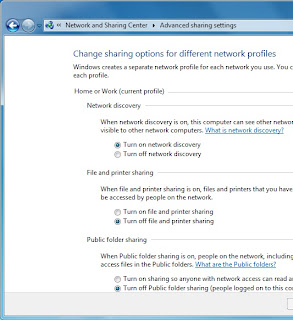
Manage advanced network sharing Settings
Start and type Manage advanced sharing Settings press Enter

If you want to share documents, photos, videos and music within your home use the Network Sharing Center to check your security settings are set right. The security options are clear and easy to understand with plain English throughout. To checkout your Network Sharing options click Start and type Manage advanced sharing Settings then press Enter, and make sure your settings are same like the image below.


You can share your internet connection, Printer(s) and files. The settings here allow you to set what's shared and who can see it.


You can also share folders by Right Clicking on one or more in Windows Explorer and selecting Share with in the context menu that appears.


You can choose from users on your PC and network who the folder is shared with,   or you can share a folder with your Homegroup.


Setting up a Homegroup.


Homegroups are new to Windows 7 and they're an excellent way to share Music, Pictures, Media files and also Printers with other PCs running Windows 7 on your home network. To create a Homegroup open Network and Internet from the Control Panel and then click on Create a Homegroup.


Alternately you can type Homegroup in Search box in Start Menu. The picture showing what kind of files and stuff you want to share with other computers, after choosing one or all, click Next.


Your Homegroup is now automatically created and  you will be given a password to type in computers you want to connect with this Homegroup network.


After creating a Homegroup network, remember this is your Host PC, and you can change any setting anytime by typing Homegroup in Search bar inside Start Menu.


How to Connect to Homegroup


Now its time to connect other computers to this Homegroup network, same way, open Homegroup by the way described above, The system will show all available Homegroups (remember the host PC must be switched ON). You will be asked for the password and then what files and documents you want to share from the new PC.


In Windows 7 Homegroup an additional and useful feature is the ability to stream media to other PCs and devices. This means music and video content can start playing on the other devices without being copied across to that device. It plays on the PC it's sat on and can be seen and heard on the other.


If you are using Wi-Fi - This is how you can make better your Streaming Video or Music:


If you use a Wi-Fi network in your home and want to stream and share video consider upgrading your Wi-Fi routher from the 802.11b or 802.11g to 802.11n standard. These codes are clearly labelled on products either at online stores on in the shops. Wireless N offers much greater bandwidth than previous standards. This means that video can be sent to other PCs on your network without any worries about it stuttering during playback.


Saturday, 11 August 2012

Will Windows 8 be More Secure?


Martin Cooper takes a step back from all the Windows 8 fanfare and examines whether the cyber criminals will love or loathe Microsoft's new OS.


Window 8, Win8 phone and Surface tablets - it seems it's all happening over at Redmond. As Microsoft's readies its new operating system roll out, we've every right to get excited, but with all eyes distracted by the new system's sheen, it's easy to overlook the mundane but essential business of security.


Over last 12 to 18 months, security - of the lack thereof has cast a growing shadow over Windows and the antivirus firms we trust to keep us safe online. Indeed, some have suggested that the bad guys might be winning in the never-ending game of high stakes chess. So the question is, will Windows 8 let us sleep sounder in our beds?


Security as Standard


To help protect Windows machines Microsoft has for a long time offered its Security Essentials antivirus program as a free download. Despite this, it's reckoned that almost a quarter of all Windows 7 PCs have no anti-malware software installed.


To address this problem, Microsoft has opted to install Windows 8 Defender by default.


 Windows 8 Defender is a combined system. it's comparable with Security Essentials, with basic protective features thrown into combat common threats.


We certainly applaud the move, as it makes the initial hurdle that much tougher for virus writers. However, when PC Format asked Collin Davis, senior director of engineering at Symantec, about Defender, his response was unequivocal. "It's not enough".


Davis says circumventing Defender will become the virus writer's first mission. "It's just not worth their effort releasing malware that can't beat it," he warned. Speaking from California. Davis explained how the bad guys had breached Windows 7's security features and Security Essentials.


As Windows 7 and 8 have so much in common under the hood, Windows 8's default security isn't - in his view - likely to overly challenge malware writers.


Boot Level Protection


Dig a little deep into Windows 8 and the story doesn't seem so bleak. During the PC boot phase, Microsoft has made strides to see off future malware.


Booting through the BIOS has remained largely unchanged for nearly 30 years. At its heart is a chain of module that tare executed in order. The process begins with the BIOS waking up, taking in ROM-based operations and calling on the master boot record.


The chain culminates in the Windows kernal and drivers being loaded and run. If malware can penetrate this initial process, the next program to run can be corrupted. In short, no process after the point of exploitation can be trusted.


 Malware such as Mebroot, TidServ and StuxNet insert themselves into this critical chain of events, compromising Windows at a very low and fundamental level. From such a privileged position it makes itself hard to detect and difficult to remove.


To combat this problem, Windows 8 includes a trio of technologies which are known collectively as Secure Boot Architecture. The first component is the Unified Extensible Firmware Interface, or UEFI. Assuming that your hardware is current and supports it, UEFI should make the lives of the virus writers' considerably harder.


Liek the BIOS, a UEFI system executes a sequence of baton-passing modules that lead to the OS . In a UEFI system, however, modules are security-signed and each module must check the subsequent operation's signature before it allows the next process to execute. The UEFI chain can be updated with a white list of trusted certificates.


Features and Flaws


The UEFI system isn't without a couple of flaws. Though all contemporary Windows systems will come with it as standard, older PCs still use the BIOS loading process and therefore remain vulnerable. The UEFI certification system has also enraged Linux users, as it makes it difficult to install the open source OS.


The next technology of note in Windows 8 is Early Load Anti-Malware. According to Microsoft, "|ELAM| starts before other boot-start drivers, enables the evaluation of those drivers and helps the Windows kernal decide whether they should be initialized." It is, in essence, a way of detecting malware during the boot process and blocking it.


Most Malware that Runs on Windows 7 will work on Windows 8


Windows 8 is designed to boot very quickly through, which places limits on what ELAM can achieve.


The Windows 8 specification also limits the amount of memory it can consume. Because it runs so early in the boot sequence and under such limitations, Symantec has already stated that "ELAM does little to improve security".


Remote Attestation is an optional feature. Implementing it inevitably slows down the boot process, which may not prove very popular with PC builders. If you upgrade or tinker with your PC, the timing check system will also need to be recalibrate. Remote Attestation, therefore, looks like a feature that we think will be best suited to corporate environments where systems remain unchanged by design.


The Metro Question


Windows 8 is all about the Metro interface - a collection of tiles linked to programs. Simply sweep though the wall of information and images, then tap the program you want to run. If you don't have a table or other touch enabled devices, you can use the interface with a mouse and keyboard instead.


There are two versions of Windows 8 - one designed to run on x86 chips and another complied for low-power ARM processors. The PC firms we spoke to had little to say about the latter version, and it's unlikely that malware authors have been able to research it much either. If Windows RT (as the ARM version is called) becomes a success, it will probably become the focus of malware writers, but at the moment it's impossible to say.


Looking at the x86 incarnation, Collin Davis explained that Windows 7 and Windows 8 classic are very close cousins. Therefore, most malware that runs on Windows 7 will work on Windows 8. Metro is however a different beast to a degree.


The Janus OS


From a security perspective it's easy to think of Windows 8 as two operating systems; Metro and Classic. Neither will run programs designed for the other. Metro is the more restrictive of the two, as you'll only be able to get programs from Microsoft's App Store, but the separation between Metro and classic Windows isn't clear cut.


Each Metro app works in a sealed environment or sandbox, which means it can't interact with other programs. In other words, Metro works in much the same way as Apple's sandboxed iOS - an OS that has so far avoided any major security silver bullet though. it is, in the words of Davis, "One of many tools that works well if it's done well."


Asked if Microsoft has implemented its sandboxing well, Davis replied, "It's too soon to tell."


There is one major chink in Metro's sandbox Armour. Metro is much like Windows Media Center-an environment that effectively sits on top of Windows Classic. Davis says this means that "a Metro app can't attack a Classic app, but a Classic app can attach a Metro one."


He adds that developing malware for Metro would be no harder or more expensive for virus writers.


It seems then Windows 8 makes the business of securing your PC subtly different, yet largely the same. The same rules, requirements and risks apply, so users should install a well-rated security suite and keep it updated.


Source: PC Magazine [UK]


Friday, 10 August 2012

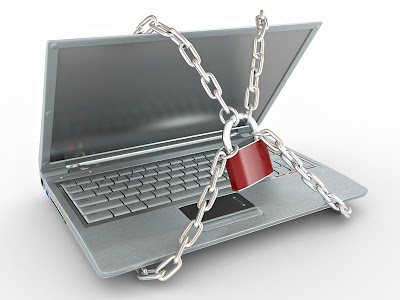
The LaptopLock - Free Tracking and Data Protection Solutions


The LaptopLock is a tracking software,  A free package offering a solid basis for your own security solution.


LaptopLock is a free offering that eschews a fancy interface for a simple, no-frills look. Signing up for the service is quick, you simply need to enter your email address and a password, and you're taken straight to the online control panel. From here you can add a computer, giving it a name for easy reference. From this page you can download software. 


During installation you can choose whether or not show a splash screen when the laptop starts up - it's nice that you're given the choice.


There are no tracking features with this program, so ideally it should be installed alongside a free service that does, such as Prey. What LaptopLock concentrates on is protecting your data if your laptop is lost or stolen; and is broken into three parts. The first security - here you can select the data you want LaptopLock to delete if you flag up your laptop as stolen via the web interface.


Choosing the files and folders is very easy, and you can select to securely delete the data, so that data recovery tools can't access it. If you're not too keen on the scorched earth policy, you can choose to encrypt the files instead.


The second part is notifications. You can select to show a message or play a sound when the missing laptop is in use. The final part is that you can select a program to launch when the laptop is reported stolen - a good chance to run a tracking program, or activate your webcam and upload the photos it takes. The laptop can also be marked as stolen, notifying a recovery team that will begin collecting evidence to hand over to the police. LaptopLock might appear simple, but with it you can make your own laptop security solution.


PC Format Magazine UK

Wednesday, 22 February 2012

Nokia Windows Smartphones | What You Need To Know


Nokia�s new Windows Phones running Lumia phone range landed in SA at the of last month. It makes a much important departure from Nokia�s old and tired Symbian OS, to the brave new world of Windows Phone. Here is all you need to know about the top of the Nokia�s chart new Smartphones Lumia 800 and Lumia 700.


Expected Features:


Office and SkyDrive


A key benefit of phones being Windows based is Microsoft Office integration in the form of the Microsoft Office hub. This is one of the strongest documentation creation and editing packages on offer for any mobile OS, and includes the mobile versions of Microsoft Word, Excel, PowerPoint as well as SharePoint. Users also have access to Microsoft�s SkyDrive, a free cloud-based storage service offering users 25 GB of online storage for documents, music, photos and videos.


Nokia Drive and Maps


Users of Nokia�s Symbian operating smartphones as well as the N9 will be very familiar with the company� excellent Nokia Drive, their free turn by turn drive and walk navigation offering that boasts voice guidance. Nokia Drive will also be available on their new Windows based devices and helps set Nokia�s devices apart from the other crop of Windows Phone OS running mobiles out there. It includes the ability to employ maps in either a 2D or 3D view and also to change the screen contrast to enhance the readability of the display during night driving.


Smartphone + Xbox360


Xbox fans will be happy about the close knit integration between the 360 and Windows Phone. Upon downloading the Xbox Companion App from the Windows Phone Marketplace, you will be able to do things such as using your smartphone as a remote control for the Xbox. Users can edit their Xbox Live avatar, keep an eye on their achievements and receive messages from friends who are on the Xbox Live network, informing them amongst others to join them for a quick gaming session in games like Battlefield 3.


Nokia Radio and Music Store


Mix Radio enables Nokia users to stream a massive library of music for free (besides the data cost involved of course) by utilizing a 3G or Wi-Fi connection, while the Nokia Music Store portal allows users to buy music and download it straight to their device.


Nokia - Why to Choose Windows Phone?


Year 2011 was a very turbulent year for Espoo-based giant Nokia, as its CEO Stephen Elop admitted that Nokia was in trouble, not having products close to offering a user experience that rivaled Google�s Androi or Apple�s iOS. This prompted the company to abandon the Symbian OS �burning platform� as well as ill-fated MeeGo OS it developed together with Intel, in favour of Microsoft�s new Windows Phone OS. The move looks set to benefit both companies with Nokia receiving a much needed OS restructuring, and Microsoft a willing handset partner ready to build on Windows Phone which, up until this time, had limited support from other handset manufacturers. 


Tuesday, 7 February 2012

10 �WOW� Gadgets of the Year


This year�s CES had some �WOW� gadgets inside, & top ten of which are reviewed below for your info. But Ultrabooks and clever cameras were will represented. Complete guide about these gadgets described here.


Nikon D4 | Digital SLR Camera


Nikon-D4-back Photo Nikon has announced the D4 (Digital SLR Camera), a full frame 16 Mega Pixel camera with a �4,799 only camera price tagged. This pro-camera improves on the speed and accuracy of its predecessors, with better image quality and low-light capability. Full HD recording and a multitude of new features have been added to the gadget. Accordingly, it�s clad in magnesium alloy to keep the gadget at bay. The camera has slots for both CompactFlash and the ultra-fast XQD memory format, and can back up between the two. Wireless modules, and extended ISO range, plus a 51-point autofocus all features.


�4,799 inc VAT (body only) | www.nikon.co.uk


Canon PowerShot G1 X | Digital Camera


Canon G1 X Camera Model Canon introduced G1 X, a 14.3 Mega Pixel Digital Compact Camera with a 288mm wide-angle lens. The aperture ranges from f2.8 to f16, while a huge 18.8x14mm CMOS sensor dwarfs that of APS-C and Micro Four Third models. It also allows for faster continuous shooting and full HD video capture. The ability to continuously autofocus while shooting video, plus 14bit RAW image support, distinguish the PowerShot from its rivals.


�699 inc VAT | www.canon.co.uk


Kodak EasyShare M215 | Digital Camera


Kodak-M215 EasyShare-wireless-capability Kodak launched a 14 Mega Pixel (as small as a Credit Size) camera weighs just 105g, but it packs in a lot of technology inside. It sports 26mm wide angle lens with a 5x optical zoom, and comes with Kodak EasyShare software onboard. A self portrait mode is included, and there�s a tiny mirror on the camera�s front so you can fix your hair. Smart capture and face-recognition technology are included. The Kodak M215 supports 720p full HD video recording, and can convert into still images. A 2.5in LCD aids composition and playback.


Toshiba Camileo Z100 | Digital camcorders


Toshiba-Camileo-Z100-Full-HD-3D-Camcorder The latest Digital camcorder introduced in this year CES, Toshiba�s latest Camileo video camera offers full HD video capture at 30fps. A pair of 5Mp CMOS sensors enable it to shoot 3D footage, where an 8x zoom is available. the 2.8in touchscreen offers glasses free previews. The Z100 has a 120x digital zoom in 2d mode, with which it can capture 16 Mega pixel still images. Electronic image stabilization is built in. The user interface has been rethought for this latest model, and a Pause button added for use during recording. Toshiba Camileo Upload software is onboard.


Price to be come| www.toshiba.co.uk


Canon Legria HF-R series | Digital camcorders


canon-legria-hf-r36 Canon blasts with this cool Photography gadget during the CES event, as their Digital camcorder Canon Legria HF-R series having a wireless connectivity to send and share photos to a storage drive or iOS device over Wi-Fi. They extend the Wi-Fi connectivity to the HF-R series only. Key features of the camcorder Legria HF-R36 include Mpeg4 support, optical image stabilization, a 51x digital zoom, cinematic filters and face detection. the camcorder offers 38 scene modes and comes with Story Creator software for easy storyboarding of your resulting footage.


Price to be come| www.canon.co.uk


HP Spectre | Ultrabook


hp-envy-14-spectre-ces-0 Ultrabooks were popular at CES, but HP was the only manufacturer to launch a see-through model. This glass-clad ultraportable has a 14in display, besting the 13in screens of most other Ultrabooks we�ve seen. It also sports near-filed communications. HP has managed to squeeze this screen into a chassis that would normally accommodate only a 13.3in display. There�s also a multitouch trackpad, a choice of 4GB or 8GB of RAM, a 128GB or 256GB SSD and Intel Core i5 or i7 ultra-low-voltage processors. A mini DisplayPort and a USB 3.0 port feature, as do 802.11n Wi-Fi and Bluetooth 2.1. HP says users can expect a battery life of nine hours between charges.


$1,399 | www.hp.com/uk


 DELL XPS 13 | Ultrabook


Ultrabook DELL XPS 13 Dell has introduced their first Ultrabook with 13.3in screen XPS 13, that pays more than a passing resemblance to Apple�s MacBook Air. Aimed at business users, the laptop is 6mm thick, offers an eight hour battery life and weighs 1.35kg. Dell says the 13in laptop is effectively the same overall size as a 11in laptop, and offers as much processing power as a standard laptop, despite its slim dimensions. Smart Connect technology built into the motherboard allows software updates to proceed in standby mode. Intel Core i3, i5 and i7 CPUs, 4GB of DDR3 RAM and SSD configurations of up to 256GB are cited by Dell.


Quaduro QuadPad 3G Plus | Tablet


Quaduro QuadPad 3G Plus For business persons, Quaduro�s 12in screen Quadro should provide the convenience of a familiar Windows interface and the ability to access all their Windows programs and documents on a highly portable device. Specifications include a 1280x800 pixel capacitive touchscreen, a 1.6GHz Inter Mobile D510 CPU, 250GB of storage, two USB 2.0 ports and 802.11b/g/n Wi-Fi. Bluetooth is an option extra, but Quaduro provides for 3G and WLAN Networks.


From �500 inc VAT | www.quaduro.com/en


Orange Tahiti | Tablet


Orange Tahiti Tablet Mobile operator Orange is introducing a 3G Android tablet. Its 7in screen Tahiti will cost you �25 a month for two years, following an initial payment of �69. The contract includes 1GB of peak and 1GB of off-peak 3G web access per month. a �41 a month contract that bundles an Orange San Francisco Android smartphone is also posited. The Tahiti tablet runs Android Honeycomb from a 1.2GHz dual core Qualcomm 8260 processor and 512MB of RAM. It has 8GB of onboard storage, a 5 Mega pixel camera, a capacitive touchscreen and a GPS compass.


From �69 on a �25/month contract | www.orange.co.uk


Sony Xperia Ion | Smartphone


Sony Xperia Ion Sony used CES to unveil the first smarpthone to escape its Sony Ericsson branding. The Xperia Ion is a 12 Mega pixel smart cameraphone that can shoot 1080i full HD video. the Android 2.3 phone has a 4.6in touchscreen and sports a 720p secondary camera. Designed as an entertainment gadget, the phone has a 1.5GHz dual-core processor, and HDMI port, and offers Bluetooth, Wi-Fi and 3G connectivity.


Price to be come | www.sony.co.uk

Wednesday, 25 January 2012

Top 5 Social Sites | Overview


Top 5 Social sites are listed below, undiscovered till end of 2011. Go and share your photos and interest with million of people, waiting for you.


Top 5 Social Sites Pinterest


Currently operating in invitation only open beta, this new social photo-sharing Website lets users �pin� images to virtual vision boards. Using the �Pin It� button, users can tag photos from anywhere on the Web to different categories like Hole Decor, Technology, Sports, Art & Craft, and Men�s Apparel. It�s the virtual equivalent of dog-earing a page in a magazine, but makes the data much simpler to organize and retrieve.


Storify


www.storify.com


If every picture both tells a story and is worth a thousand words, then it fellows that it takes more than 140 characters to get the full picture. Storify lets users weave tales of events from various social media threads like Twitter, Facebook, YouTube, and Flickr.


Erly


www.erly.com


Why just slap up photos when Erly helps you and friends create collections of your shared memories? Everyone�s content is pulled together in one album full of images, videos, status updates and notes. You send the URL for the collection out and others can contribute. This could be the event scrapbook and the meeting minutes of the future.


Canvas


www.canv.as


Canvas is a great place to get your fill of fun and interesting remixed images posted from users all over the Internet, and what you see is probably safe-for-work. The site is a curated home of interned messages, videos and pictures even your mother could love. And even better,  Canvas provides the tools to help you make some of your own.


Chime.in


www.chime.in


What if instead of tweeting, you chimed? Unlike the current social networks, the new Chime.in is not about people and profiles, but is organized around topics. People who log in using their Facebook and Twitter accounts can participate in �Chimes� around their topics of choice, building a community on the fly. If you make a community, you can even put on ads to monetize it.

Tuesday, 1 November 2011

Setting Up a New Hard Disk | Windows 7


Setting Up a New Hard Disk | PC Supporter


Whether you�re installing Windows on a brand new hard disk or simply adding a new disk to an existing system, it�s a good idea to consider how you want to use the new storage space before you begin creating volumes. If your goal is to set up a large space for backup or media storage, for example, you might want to devote the entire disk to a single volume. On the other hand, if your plan is to establish two or more separate volumes�perhaps one for each family member on a shared home computer, for example�decide how many gigabytes you want to assign to each partition. You can change your mind later, but it�s easiest to adjust the number of volumes on a disk and their relative sizes before you�ve put a lot of data on the platter.


Setting Up a New Hard Disk | Windows 7


Installing Windows on a New Disk


When you run the Windows 7 Setup program on a computer with a single, raw hard disk, Setup presents you with a screen identifying the disk and its size. If you want to create a single volume encompassing the entire disk, click Next to proceed . Otherwise click Drive Options (Advanced) . On the screen that follows, you can use the Size control to specify how large a volume you want to create for your Windows installation:

Installing Windows on a New Disk


If you decide not to use the entire disk for Windows, you can create additional volumes from within the Setup program. But there�s no particular need to do this. After you have installed Windows, you can use Disk Management to create one or more additional volumes in the unallocated space remaining on the disk.


Adding a New Disk to an Existing Windows Installation


In the graphical pane of Disk Management, a brand new hard disk, whether internal or external, appears like this:


Adding a New Disk to an Existing Windows Installation


To make this disk available for storage, you need to create one or more volumes, assign drive letters, label the volumes (if you don�t want them to be identified in Windows Explorer as simply �New Volume�), and format the new volumes. You can carry out all of these steps from within the New Simple Volume wizard.


Monday, 31 October 2011

EnGenius ESR9855G | Multimedia Enhanced Wireless 300N Router for Gamers

EnGenius ESR9855G | Multimedia Enhanced Wireless 300N Router for Gamers | Review

The EnGenius ESR9855G Multimedia Enhanced Wireless 300N Gaming Router is a single-band device, blown up with advanced features and generous a spiky managing interface. It delivers strong throughput at close range in a row in 802.11 b/g/n (Mixed) modes, but that throughput down off at distance increasing. Unexpectedly, speed actually declined when we set the gadget (EnGenius ESR9855G) on 802.11n only mode. This makes for a router that aims high yet falls short in retaining constantly strong throughput. It's the one big mistake in this gadget, otherwise very good router.


EnGenius ESR9855G Multimedia Enhanced Wireless 300N Gaming Router
Specs and Design

Among consumer router, the ESR9855G�s design is only one of its kind. It's an authentic eye catcher, with black shiny top and bright orange bodywork. Two external 3dBi Dipole antennas attach to both sides of the router. Inside are the Ubicom IP7K + Atheros AR9223 (RF) chipset. The front panel has LEDs for monitoring power, client connections, WAN and WPA. The rear houses four Gigabit LAN ports, a WAN port, and a power switch.  On top of the unit is a WPS button for easy client connectivity. The bottom of the device has two wall mount sockets.
The design is apparently conducive to cool running, as the router remained cool to the touch after two days of uptime.
Setup and Features

The setup process, which requires wiring a computer to the device, seems dated when the norm is wireless setup found in routers such as the Cisco Linksys E4200 Maximum Performance Wireless-N Router or Belkin's N750 Wireless Dual-Band N+ Router, but it is still easy and efficient. The router ships with a CD containing the user manual and the EnGenius Smart Wizard, a browser-based interface rather than an executable file.
Setup commands are very detailed, illustrating how to power up and connect the cables to the router. My WAN settings were picked up right away. By default, the router was configured to run in mixed mode with no security setup. This may be problematic for less technical users. Routers from Cisco/Linksys and other vendors incorporating security configuration into the initial setup process; it�s just that important. Since EnGenius is marketing this to the savvier gamer set, the omission of security configuration from setup is forgivable.
The interface is sharp. It's clean, and easy to navigate through. The color choices and font-sizing makes it very easy on the eyes. Once the router is set up, the interface allows for further configuration of basic and advanced settings. A wireless wizard within the interface walks users through the basics�changing the SSID and setting up security. Although, as mentioned, security isn't configured during initial setup by default, EnGenius does a good job of conveying what the different security settings mean, with WPA2 listed as "Best."
Advanced settings allow for very granular tweaking of settings that most users won't want to fuss with, such as transmit power and DTIM interval. In between the very basic and very advanced settings are lots of other features in this router. The device offers DHCP, SPI firewall, VPN pass-through, Dynamic DNS, virtual server mapping and port forwarding.
QoS is done with feature called SteamEngine. When enabled, it aids in prioritizing traffic, which is why this is a router targeted for gamers and multimedia enthusiasts.
While some throughput issues stop me short of recommending this as a small business router, there are some capabilities that would be attractive to a small business. For instance, the ESR9855G supports WPA2-Enterprise encryption, and users can establish up to four distinct WLANs.

Thursday, 20 October 2011

How To Avoid Phishing Scams

AQUA ICONS SYSTEM ALERT STOPPhishing scams are commonly initiated via e-mail. Phishing is a fraudulent means of obtaining someone�s username and password. The con artist/identity thief sends an e-mail that appears to originate from a bank, credit card company, or other such company warning of a serious issue you must address right now by clicking a link and logging into your account. The link takes you to an official-looking site complete with text boxes for entering your username and password. If you enter this sensitive information, the con artist has what he or she needs to log in to your real account.


To avoid falling victim to e-mail phishing scams, take the following precautions:
  • Play it safe and go to the website yourself without clicking the e-mail or a link in the message. (You should be able to identify the website from the subject line or the address from which the e-mail originated.) If the website is legitimate and the message did in fact originate from it, you should be able to find something on the website about it; otherwise, it�s most likely a scam.

  • If your e-mail program features phishing protection, enable it. Check your e-mail program�s help system for details.

  • Be aware that most legitimate companies do not send alarming e-mail mes�sages with links to click to resolve issues. If you receive such a message, it�s probably not from the source it claims to come from.

  • Mouse over the link and look in the status bar at the bottom of the window to see the address the link will take you to. Chances are, the link indicates one destination while the address takes you somewhere else entirely. This is a sure sign of a phishing scam.

  • If you think the e-mail message is legitimate, head to the company�s website to obtain legitimate contact information, and then contact the company to verify that someone at the company sent the message.

  • If you determine that an e-mail message is fraudulent, report it to the legiti�mate company from which it supposedly originated so the company can take action.

TEENAGEPhishing scams are most common but not exclusive to e-mail. Con artists may try to obtain login information in chat rooms, via instant messaging programs, and in social networking venues (including Facebook). A good rule of thumb is this: provide sensi�tive information only if you initiated contact.

Avoiding | Filtering | and Blocking Spam

PC Supporter

Avoiding, Filtering, and Blocking Spam

Security_WarningSpam is unsolicited, unwanted e-mail�junk mail. When you first get an e-mail account, you receive very little spam. The spam starts to f low when you post your e-mail address on the web or sign up for free offers with companies that pass your e-mail address to others. Once your e-mail address lands on a spam list as a legitimate address, the spam is almost impossible to stop. When it comes to spam, an ounce of prevention is worth a kilo of cure. Here are a few tips for preventing spam:


  • Don�t use your primary e-mail address to register for anything on or off the web. Get a free e-mail account from Gmail, Yahoo!, or Hotmail and use this disposable e-mail address to register for stuff. If you start receiving too much junk e-mail, you can dump the address and use a different one.
  • If you receive a spam message, don�t reply to it. Replying verifies your e-mail address to the spammer and encourages more spam.
  • Don�t put your primary e-mail address on the web�for example on your website or blog. Spammers scan the web for e-mail addresses.

PC Supporter Tips

TipsIf you�re receiving an overwhelming amount of spam, try the following solutions to slow the flow:


  • Log in to your Internet service provider�s website to find out whether it uses a spam blocker and whether you can configure it to make it more aggressive in identifying spam.
  • If you have the e-mail account through a hosting provider (a business that hosts your website), log in to your account to find out about available options.
  • Purchase and install a spam blocker of your own. You can find plenty of good spam filters/blockers out there, including SPA Mfighter (www.spamfighter.com), ChoiceMail (www.digiportal.com), and Spameater Pro

E-MailMost newer e-mail programs offer some sort of spam protection (perhaps in the form of a Junk Mail folder) and enable you to enter settings to make the program more or less aggressive in identifying spam. In addition, you can usually create lists of safe senders and blocked senders and block e-mail from certain domains or countries. Search your e-mail program�s help system for �spam� to determine what, if any, spam protection features are available.

(www.spameaterpro. com), to name a few.

Securing Your Network

PC Supporter

Securing Your Network.

Network ServiceA broadband Internet connection is typically an always-on connection. That is, as long as you leave your modem, router, and computer on, you�re connected to the Internet. This makes your network more vulnerable to attacks from snoopy people and perhaps even Internet vandals. With the proper know-how, someone on the Internet can con�nect to your computer, peek at your documents, and even destroy valuable data.


You can�t completely protect your computer or network from such threats, but you can significantly deter potential break-ins by implementing various security measures.

Things You Need to Know.

114To network your computers, install a single, centralized router and make sure each computer you want on the network has a compatible network adapter or LAN port.
Learn how to adjust your router settings to enable its firewall, enter encryption settings, and specify a passphrase that all computers need to log on to the network.
To share files, folders, and other network resources, create a homegroup and have all networked computers join the homegroup.

Tuesday, 18 October 2011

How to Install Hp LaserJet 1320 Printer in Windows 7?


How to Install Hp LaserJet 1320 Printer in Windows 7?


Is Hp LaserJet 1320 Printer compatible with Windows 7?


Yes it is!

hp laserjet 1320 Printer Supporter Windows 7


Today Windows 7 is the most popular Operating System using in Homes & Offices all over. In early days due to non-compatibility and support to many Devices (like Printers, Scanners etc.), Windows 7 was not a Primary Operating System according to Professional�s remarks.


Many companies made their devices compatible to this New Operating System with updating their Software and Drivers for Devices like Printer, Scanners etc., some of other companies made brand new Devices for new operating system. But some devices were far behind due to non-compatibility with Windows 7, and users were waiting for new release of drivers.


Hp LaserJet 1320 is also one of the device, we still hoping from Hewlett Packard to launch updated drivers for 1320, to make it compatible with Windows 7.


Today I am going to tell you how you can make your Hp LaserJet 1320 fully compatible with Windows 7 (Ultimate, Professional and Home Edition), without installing any 3rd Party software or drivers.


So lets follow me:- (I am using Windows 7 Ultimate, and I tried it on my own Operating System only, so keep it in mind)


1.   Connect your printer (HP LaserJet 1320) with your PC, and turn it ON.


2.  Do not browse or insert Printer Driver Disk into your PC Rom (CD-Rom or DVD-Rom) for installation from Disk.


3.  Go to Start and click on Devices and Printers on the right side.


Start Menu

4.  A window will appear showing all connected or installed devices in your Windows, with a yellow (troubleshoot) icon on the right down corner, you also find your Hp LaserJet 1320 Printer in the list but you should click on Add a Printer button (at the upper left side of the same window) to proceed to installation.

5.  A new dialogue box will appear, asking you �What type of Printer do you want to Install?�, and click on �Add a Local Printer�.

6.  Inside another dialogue box, click on drop down button �Use an existing port�, and click on DOT4_001 (HP LaserJet 1320 Printer), and click Next.

7.  Another box will appear asking you �Install the printer driver�, here you will find two column lists, �Manufacturer� on the left and �Printers� on the right side.

8.  Inside Manufacturer column, scroll down and select HP, on the right side column, you will find Plug & Play printer�s list (which are compatible with Windows 7).

9.  Inside HP Printer�s list, scroll down, find HP LaserJet 2200 Series PL5 and click on it to select, and click Next.

How to install Hp LaserJet 1320 Printer in Windows 710.  Inside another box, write your Printer Name (Hp LaserJet 1320 Series PCL5) and click Next to print a Test Page from your Hp LaserJet 1320 Printer.

If you find it helpful to install your printer, please share it, so others can get some help on their behalf.

For any questions regarding to PC Help, please write your Questions in the Comments below.


For further Information about how to Install HP LaserJet 1320n and 1320tn on Networked Computers please contact HP Support Center.


Thursday, 13 October 2011

Registry Repair - The Advantages Of Registry Cleaners


Registry Repair - The Advantages Of Registry Cleaners


These days registry cleaner utilities tend to be used more and more frequently. This way, the registry is maintained in a good condition and the computer remains healthy. As computers represent the most important tools of this century, allowing them to run as fast as they can is very important. Using the computer leads to the creation of a greater number of registry entries

. The registry cleaner tools keep the registry in shape by eliminating the invalid data. Besides information that is stored permanently, the Window registry also contains temporary data that is created by the programs on your computer. These temporary entries are not deleted automatically by your operating system. The computer starts to move slower as the number of the invalid entries grows.

Advantages of Registery Cleaner | Inside PC


Using a Windows registry cleaner tool is imperative, at least once in a while. When a program is uninstalled or deleted without uninstalling, certain entries remain in the Windows registry. The utilities remove the invalid entries and keeps the computer in optimal condition.


The Main Advantages

Installing and uninstalling software, as well as deleting programs without fully uninstalling them, leaves behind useful registry entries. In addition, if the computer has Spyware software, or if there are drivers that are not used, invalid registry entries are present. These problems accumulate and, in consequence, the computer becomes slower in time. In this moment, a tool to clean and repair the Windows registry becomes useful. Scanning and removing the invalid entries once in a while helps the


system to run at its full power.

The new generation of registry cleaner utilities combines a series of enhanced options. They are able to scan the registry and delete the invalid entries, while leaving the valid entries intact. The performance increases considerably after taking this action. Next, these tools may present an option that resembles of the De-fragmentation of the files. The empty spaces are accumulated and the fragments are eliminated, facts which also lead to an improved performance. Some of these tools may be able to clean the keys that are untraceable, usually. This type of entries contains harmful codes that are utilized by viruses, worms and Trojans. Not at last, the majority of the best registry cleaner tools offer the ability to schedule the registry scanning and the removal of the invalid keys.


When an operating system is freshly installed, the registry does not present any problems. However, in time, as programs are installed and uninstalled, or simpler, just used, the number of the invalid entries becomes greater. The performance of the whole system is affected this way. When this happens, people may discover how useful a good 1st registry cleaning software is. These tools are able to eliminate invalid entries and to boost the speed of the computer.


How To Fix Corrupt Registry Files

How To Fix Corrupt Registry Files

The information related to your hardware and software is contained in the files of your Windows registry. These comprise of the operating system that you are running in your computer, the application software that you are having, the preferences that you have set and your profiles, and the association between the files which provide information relating to the files that are being handled by each of the programs that you have in your computer.

Let us find out as why your Windows registry needs to be repaired, and how this repair is carried out.
registry-booster-currupt-registry-files-inside


There are several software tools available to repair and correct your registry problems, and the link below provides you with the address of the webpage where you can find a selection of the software tools that would help you to solve your problems in your Windows registry. Windows provide you with the facility to repair and clean the registry manually. You can get to the registry of your computer by using the program regedit.exe or by typing reg.exc at the command line provided by your windows software.


This facility is available in practically all the Windows versions, including Windows XP. It is not desirable that you try to repair or clean the registry files manually, for, if any of the files gets damaged or accidentally deleted, your operating system or the application software would not run anymore. Manual registry repair or cleaning is not recommended even if you have backed up your registry beforehand.


Although you can use the programs to inspect the registry contents, Microsoft does not recommend that you actually edit the contents, since one incorrect change may prove to be disastrous. In case you are trying to repair the registry manually, and something goes wrong, and your back up does not work either, you will need to completely re-instal your windows operating systems.


It is always recommended that you use specialized software that was designed and developed to repair and clean Windows registry. Now, let us find out what are the reasons that prompt registries to be repaired, and why does it become necessary.

NEXT
There are many varied reasons which require the Windows registry to be maintained. When the registry develops faults, your Windows operating system and other application software may not run correctly. A corrupt registry or loss of files in the registry may cause your computer not to boot at all. There are circumstances when you have removed your old application software which you used before. There may be files for the old application software left in the registry and because of those, your system gets slow. The system will be affected adversely as far as its stability is concerned, and at times freezes your monitor screen, or you may see a blue screen with the computer hanging up and stopping all your work. As you go on using your computer, the size of the registry keeps on growing, and this growth crosses the limit at one point.


As the registry grows in size, you will find that the performance of your computer is slowly degrading. You may find that the system becomes unstable with the installation of hardware in your computer. Here you just might need to get your registry back in original shape before you can trustfully install the hardware that you have been trying to do.


The encouraging part of all this is that you have a wide choice of registry software programs which will automatically clean and repair the registry in your system very rapidly, removing all unwanted files and repairing any which have been corrupted. Registry repairing and cleaning software would provide you with the facility to scan your computer and present you with a list of your registry errors. Such software tools are called registry cleaners or repairers. These are very easy to install and to use to maintain the registry from time to time. Good Registry repair software can clean and repair your Xp or Vista registry in just a few minutes. The repairing and cleaning of the registry will provide you with amazing results when you start using your computer after the registry has been scanned and repaired by the software.


If you're experiencing or suspecting you have Windows registry problems, you have no time to lose. Therefore we provide you with a free tool to detect all the registry problems on your computer. All you need to do is to download the software and scan your computer for the registry failures, after which you can easily run the software to repair your registry problems.

Poised To Attain Good Outcome- Windows 7


Poised To Attain Good Outcome- Windows 7


One of the strongest entries in the Windows family of products ever, Windows 7- a tidy and compelling package to all Windows users deserves great compliment. Built on the highly sophisticated technologies introduced with Vista, but with an improved focus on performance and ease-of-use, Windows 7 seems poised to succeed and give a tribute to Vista's true

worth. Indeed, from a completely overhauled user interface to brand-new features crafted to make systematizing and sharing your files easier, Win 7 delivers much more than just new wallpapers and a beautifully designed 'taskbar'. For a more in-depth knowledge of features, prices, compatibilities, and more, do a Windows 7 comparison online.


Poised To Attain Good Outcome- Windows 7


If you make a Win 7 comparison looks-wise, you will find that Windows 7 is professedly similar to Vista, thanks to its 'Aero Glass' look. Microsoft's on-screen gadgets are now no longer limited to a sidebar and can be sited anywhere on the desktop, making 'customizing Windows' far more flexible and impressionable. Perhaps the most arresting interface feature of Win 7 is its new taskbar. Flit around your mouse pointer over an application icon and all its windows are previewed.


You must be pondering- why squander money when your older copy of Windows seems to work fine? That's good- however; you can get all your answers by reading Win 7 reviews and making a Win 7 comparison.


Go Pro with Win 7 Professional! It is speedy, more consistent, includes all the features of Windows 7 Home Premium, and then adds some superior networking features. Accoutered with Win XP Mode1, Windows 7 Professional has the highest proportion of compatibility with Windows XP programs. The remarkable thing is that Windows Virtual PC + XP Mode facilitates you to run XP software programs inside your indigenous Windows 7 desktop - that means you can run legacy XP programs just like any other Windows 7 compatible program. Features such as Windows Search, Jump Lists and Live Taskbar Previews find files and helm open windows faster and they're more spontaneous to use. The "offline files" feature of Windows 7 Professional reserves the network files to your local drive so you can carry on working even if the network connection gets disconnected. The en suite Windows Backup tool can backup your data to the network and you may use the encrypted file system to protect files on the computer more powerfully. All these happen with Microsoft Windows 7 Professional!


[source]


Wednesday, 7 September 2011

Lenovo Debuts Its New Windows 7 Tablet


Lenovo�s new IdeaPad Tablet P1 is a productivity machine and enter-tainment device rolled into one. After all, it�s the first tablet we�ve seen that has Microsoft Office 2010 and Angry Birds for PC preinstalled. The P1 has a 1.5GHz Intel processor, integrated Intel HD graphics, and up to 2GB of DDR2 memory. You can choose between a 32GB and 64GB SSD, and the microSD slot provides additional storage capabilities. The tablet features a 10.1-inch HD multitouch display, USB port, 2MP Web cam, Wi-Fi and Bluetooth connections, and up to six hours of battery life. The P1�s impressive software suite also includes OneKey Rescue System, Lenovo Energy Management, eBook reader, App Manager, and Arcsoft TotalMedia Center. Pricing for the P1 was not available at press time, but Lenovo reports the tablet is due out later this year.

a


Enhanced by Zemanta


Social Links