PC Supporter: We are writing reviews & overviews about latest Technology, Gadgets, Social-networks, HP Printers, Operating Sys, PC Games & Wallpapers

Showing posts with label windows 8. Show all posts

Sunday, 11 May 2014

How to Choose the Right Tablet? | PC Supporter


How to Choose the Right Tablet? Windows: Android, Apple, or

By Wendy Sheehan Donnell

It's difficult to remember a time before tablets, but it's been four short years since the original Apple iPad hit the scene, and the current tablet market was born. Since then, we've seen scores of manufacturers trying to snag a slice of the tablet pie. And the game is finally getting interesting: For the first time in 2013, Android tablet sales overtook the iPad. Growth is so rapid in the segment that some analysts claim tablets will make up half the PC market in 2014. There's no denying the tablet is here to stay.
But which tablet is right for you? Whether you're eyeing an iPad, one of the many Android tablets available, or a Windows model, here are the key factors you need to consider when shopping for a tablet:

Thursday, 8 May 2014

How to Install HP LaserJet 1320 Printer in Windows 7?


How to Install Hp LaserJet 1320 Printer in Windows 7?

Today Windows 7 is the most popular Operating System using in Homes & Offices all over. In early days due to non-compatibility and support to many Devices (like Printers, Scanners etc.), Windows 7 was not a Primary Operating System according to Professional’s remarks.
Many companies made their devices compatible to this New Operating System with updating their Software and Drivers for Devices like Printer, Scanners etc., some of other companies made brand new Devices for new operating system. But some devices were far behind due to non-compatibility with Windows 7, and users were waiting for new release of drivers.

Monday, 19 November 2012

6 Features - Your Windows 8 Tablet Must Have


Windows 8 Build for Touchscreen Devices? Yes, but do your new Windows 8 Tablet have these 7 features?


Before going to overview these features, first we talk a little about New Windows 8 Operating System. There are two main version of Windows 8 are available for touchscreen gadgets, "Windows RT and Windows 8". 


Basically Microsoft prepare and organize this new operating system for touchscreen devices, no doubt, and doesn't matter if its RT or 8 version, but Windows RT is slightly different than 8, as it designed to be more friendly with Touchscreen devices, Internet connectivity and as well for a device with longer battery life. Although some tablets makers ( I would say) don't like it, but if we go deep inside, Windows RT is viewed as more of a tablet operating system in the mold of Apple's iOS, while Windows 8 tablets may appeal to PC users looking for backward application compatibility. 


According to PC Advisor (a technology magazine publishers), "The cheapest RT tablet is Microsoft's Surface, which starts at �399." And "Windows 8 tablets will be competitive on price, however.


Lets talk about 6 features your new Windows 8 tablet must have.


1. Application compatibility


With a few exceptions, existing Windows applications will not work on RT. This is partly because ARM processors haven't previously supported major desktop Windows client OSes. But existing applications will work on Windows 8, as previous Windows OSes over the past few decades were written primarily for Intel or AMD processors. Microsoft has adopted a new application model with Windows RT and 8, and users will be able to download apps through the Windows Store.


2. Peripherals and accessory compatibility with RT


A lack of drivers may prevent some older peripherals, such as printers or cameras, from working with RT, but that doesn't mean your peripherals won't work. It's worth checking with device makers to see whether they have drivers for RT. Dell and HP have published compatibility lists for their printers.


Read here if you searching for your PC hardware drivers, compatible with Windows 8. "Where To Download the Latest Windows 8 Drivers for Popular Hardware"


3. Memory Limit


Windows RT is only 32bit, so tablets running the OS can draw on only up to 4GB RAM. Windows 8 tablets with Intel's Clover Trail Atom chip will also be only 32bit. However, tablets with Intel's PC-like Core processors run a 64bit version of Windows 8, and can handle more RAM and storage.


Tablets are adequately served with 32bit processors today but, with the usage of demanding applications growing, storage and memory needs will increase in mobile devices. ARM has taken a step ahead by announcing its ARMv8 64bit architecture, with chips likely to appear in 2014. Microsoft has not announced its 64bit plans for Windows RT.


4. ARM processors options


Windows RT tablets have already been announced with chips from nVidia and Qualcomm, which are based on ARM processors. Microsoft's Surface, Asus' Vivo Tab RT and Lenovo's IdeaPad Yoga 11 hybrid use nVidia's quad-core Tegra 3 processor, which may appeal to gamers and users looking for fast performance. Samsung's Ativ Tab and Dell's XPS 10 run Qualcomm's dual-core Snapdragon S4, which balances performance, battery life and connectivity.


5. Hardware limits


Windows RT tablets have only USB 2.0 ports. However, backward compatibility allows peripherals such as external storage devices with USB 3.0 ports to connect to RT tablets. The peripherals will work only if compatible with Windows RT, though, USB 3.0 ports are available in Windows 8 tablets running Intel's Core processors.


6. Enterprise Features


Dell and Samsung have highlighted enterprise features in RT tablets. Dell's XPS 10 tablet can be remotely disabled if lost or stolen, and software images and updates can be pushed to tablets. Dell has also included some security features such as TPM, a hardware-based cryptography and authentication technology. Samsung has included Microsoft Exchange and Cisco VPN support in its Ativ Tab.


Tuesday, 30 October 2012

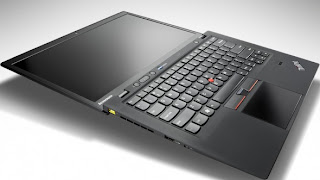
5 Top Features Your Ultrabook Must Have


5 Top Features Your Ultrabook Must Have if you prefer to buy one rather than MacBook Air.


According to your use and profession If you consider that Ultrabook suits you more than MacBook Air or you are interested to buy an Ultrabook rather than MacBook Air, so there are some actual features your Ultrabook must have.


According to style, features and something that called Trend, Apple's MacBook Air is a top Notebook but on other side Intel's super fast chipped Ultrabooks is more liked because of its compatibility and user friendly environment operating system (Windows).


So you have decided you want to buy an Ultrabook rather than a MacBook Air? Here are 5 top features to consider before making your purchase.


Quality Construction


Quality Construction - Ultrabook


Many of the unique or unusual characteristics about Ultrabooks come about because they're so thin, a height of three quarters of an inch, and even less in some cases. One of the most important of these is the systems' tendency to feel flimsy. Because most laptops don't sit at home on your desk all the time, you want the sturdiest on you can find, whether it's open or closed.


Keyboard


Keyboard - Ultrabook


Key travel on Ultrabooks is frequently shallow, after all, there's not a lot of room to house big, strong keys! This won't be a problem for everyone, but if you're a hard core typist or if you are going to need your laptop for work, you'll want to pay special attention to the keyboard. If you can, try typing on an Ultrabook you're interested in before you take it home to get an idea of how it feels beneath your fingers. You don't want to buy a notebook you won't enjoy typing on.


Port Selection


Port Selection - Ultrabook


The reduced height of ultrabooks causes problems with ports as well. Many systems simply don't have room for Ethernet ports, some have far fewer USB ports than you may be used to (may be only one or two), and still others may come with dongles that give you the ports but add inconvenience to the package. Knowing what you need, so you know what you'll need to put up with, is an especially good way to go here.


Touch Screen


Touch-Screen - Ultrabook


Although not a part of the standard ultrabook specs, and previously impossible to find on many systems, touch screens should now be considered a necessity. The new tile based Windows 8 interface was designed for touch, and the operating system just doesn't deliver the same experience without it. A laptop with a traditional touchpad will work, but it won't be anywhere near as intuitive. To get the most out of your Windows 8 Ultrabook, make sure it comes with a touch screen.


Wireless Display


Intel's Wireless Display technology (usually shortened to WiDi) lets you stream HD content over the air to your HDTV, rather than forcing you to connect your set to your laptop with an HDMI cable. You'll need a separate adapter, like Netgear's $100 Push2TV (pictured here), to make it work, but if you're really into entertainment you'll easily find WiDi capability worth the extra investment.


Saturday, 11 August 2012

Will Windows 8 be More Secure?


Martin Cooper takes a step back from all the Windows 8 fanfare and examines whether the cyber criminals will love or loathe Microsoft's new OS.


Window 8, Win8 phone and Surface tablets - it seems it's all happening over at Redmond. As Microsoft's readies its new operating system roll out, we've every right to get excited, but with all eyes distracted by the new system's sheen, it's easy to overlook the mundane but essential business of security.


Over last 12 to 18 months, security - of the lack thereof has cast a growing shadow over Windows and the antivirus firms we trust to keep us safe online. Indeed, some have suggested that the bad guys might be winning in the never-ending game of high stakes chess. So the question is, will Windows 8 let us sleep sounder in our beds?


Security as Standard


To help protect Windows machines Microsoft has for a long time offered its Security Essentials antivirus program as a free download. Despite this, it's reckoned that almost a quarter of all Windows 7 PCs have no anti-malware software installed.


To address this problem, Microsoft has opted to install Windows 8 Defender by default.


 Windows 8 Defender is a combined system. it's comparable with Security Essentials, with basic protective features thrown into combat common threats.


We certainly applaud the move, as it makes the initial hurdle that much tougher for virus writers. However, when PC Format asked Collin Davis, senior director of engineering at Symantec, about Defender, his response was unequivocal. "It's not enough".


Davis says circumventing Defender will become the virus writer's first mission. "It's just not worth their effort releasing malware that can't beat it," he warned. Speaking from California. Davis explained how the bad guys had breached Windows 7's security features and Security Essentials.


As Windows 7 and 8 have so much in common under the hood, Windows 8's default security isn't - in his view - likely to overly challenge malware writers.


Boot Level Protection


Dig a little deep into Windows 8 and the story doesn't seem so bleak. During the PC boot phase, Microsoft has made strides to see off future malware.


Booting through the BIOS has remained largely unchanged for nearly 30 years. At its heart is a chain of module that tare executed in order. The process begins with the BIOS waking up, taking in ROM-based operations and calling on the master boot record.


The chain culminates in the Windows kernal and drivers being loaded and run. If malware can penetrate this initial process, the next program to run can be corrupted. In short, no process after the point of exploitation can be trusted.


 Malware such as Mebroot, TidServ and StuxNet insert themselves into this critical chain of events, compromising Windows at a very low and fundamental level. From such a privileged position it makes itself hard to detect and difficult to remove.


To combat this problem, Windows 8 includes a trio of technologies which are known collectively as Secure Boot Architecture. The first component is the Unified Extensible Firmware Interface, or UEFI. Assuming that your hardware is current and supports it, UEFI should make the lives of the virus writers' considerably harder.


Liek the BIOS, a UEFI system executes a sequence of baton-passing modules that lead to the OS . In a UEFI system, however, modules are security-signed and each module must check the subsequent operation's signature before it allows the next process to execute. The UEFI chain can be updated with a white list of trusted certificates.


Features and Flaws


The UEFI system isn't without a couple of flaws. Though all contemporary Windows systems will come with it as standard, older PCs still use the BIOS loading process and therefore remain vulnerable. The UEFI certification system has also enraged Linux users, as it makes it difficult to install the open source OS.


The next technology of note in Windows 8 is Early Load Anti-Malware. According to Microsoft, "|ELAM| starts before other boot-start drivers, enables the evaluation of those drivers and helps the Windows kernal decide whether they should be initialized." It is, in essence, a way of detecting malware during the boot process and blocking it.


Most Malware that Runs on Windows 7 will work on Windows 8


Windows 8 is designed to boot very quickly through, which places limits on what ELAM can achieve.


The Windows 8 specification also limits the amount of memory it can consume. Because it runs so early in the boot sequence and under such limitations, Symantec has already stated that "ELAM does little to improve security".


Remote Attestation is an optional feature. Implementing it inevitably slows down the boot process, which may not prove very popular with PC builders. If you upgrade or tinker with your PC, the timing check system will also need to be recalibrate. Remote Attestation, therefore, looks like a feature that we think will be best suited to corporate environments where systems remain unchanged by design.


The Metro Question


Windows 8 is all about the Metro interface - a collection of tiles linked to programs. Simply sweep though the wall of information and images, then tap the program you want to run. If you don't have a table or other touch enabled devices, you can use the interface with a mouse and keyboard instead.


There are two versions of Windows 8 - one designed to run on x86 chips and another complied for low-power ARM processors. The PC firms we spoke to had little to say about the latter version, and it's unlikely that malware authors have been able to research it much either. If Windows RT (as the ARM version is called) becomes a success, it will probably become the focus of malware writers, but at the moment it's impossible to say.


Looking at the x86 incarnation, Collin Davis explained that Windows 7 and Windows 8 classic are very close cousins. Therefore, most malware that runs on Windows 7 will work on Windows 8. Metro is however a different beast to a degree.


The Janus OS


From a security perspective it's easy to think of Windows 8 as two operating systems; Metro and Classic. Neither will run programs designed for the other. Metro is the more restrictive of the two, as you'll only be able to get programs from Microsoft's App Store, but the separation between Metro and classic Windows isn't clear cut.


Each Metro app works in a sealed environment or sandbox, which means it can't interact with other programs. In other words, Metro works in much the same way as Apple's sandboxed iOS - an OS that has so far avoided any major security silver bullet though. it is, in the words of Davis, "One of many tools that works well if it's done well."


Asked if Microsoft has implemented its sandboxing well, Davis replied, "It's too soon to tell."


There is one major chink in Metro's sandbox Armour. Metro is much like Windows Media Center-an environment that effectively sits on top of Windows Classic. Davis says this means that "a Metro app can't attack a Classic app, but a Classic app can attach a Metro one."


He adds that developing malware for Metro would be no harder or more expensive for virus writers.


It seems then Windows 8 makes the business of securing your PC subtly different, yet largely the same. The same rules, requirements and risks apply, so users should install a well-rated security suite and keep it updated.


Source: PC Magazine [UK]


Friday, 1 June 2012

Microsoft: Windows 8 Boots Too Fast for Mere Mortals


Windows 8 Boots Too Fast for Mere Mortals

Windows 8 boots so fast, users will likely not have time to trigger the boot menu before the PC boots, Microsoft claims.

In a blog post this week, Chris Clark, a program manager on the Windows User Experience team, again claimed that Windows 8 will boot in less than 7 seconds on a PC equipped with a sold-state drive.

In older PCs, users have had plenty of time to hit the F2 or the F8 key and trigger a boot menu before the machine POSTs, and could use that menu to run diagnostic tools and boot from alternate devices. With Windows 8, that "window" to push the F8 key is less than 200 ms, Clark wrote, fast enough that even a gamer might be hard pressed to hit the correct keystroke in time.
Instead, Microsoft had to come up with some alternative methods of getting to the boot menu.

Thursday, 31 May 2012

Microsoft to ship Windows 8 Release Preview

Microsoft to ship Windows 8 Release Preview

Microsoft will ship Windows 8 Release Preview today, several days earlier than expected, according to a blog briefly posted by the company.
The blog post, written by Chuck Chan, an executive with the Windows development team, went live for a few minutes late Wednesday, long enough for several users to take notice. Neowin first reported the leak of Chan's post and its Thursday date.
Earlier, Microsoft had promised to deliver the Release Preview the first week of June, a timeframe that most, including Computerworld, assumed meant the week of June 4-8. But the company must have thought differently, figuring that Friday, June 1, qualified this week as the month's first.
The late-May debut of Release Preview meshes with a schedule spelled out in March by Michael Cherry, an analyst with Directions on Microsoft, who said that the Redmond, Wash. developer would deliver the build three months after the Consumer Preview, with a "release to manufacturing," or RTM, edition three months later.

Wednesday, 7 March 2012

Why to Choose Ultrabook | Guide for New Comers


They are the lightest and thinnest laptops yet and the biggest & very popular computing category of the years. Here is what you need to know when joining the Ultrabook generation. [By Eric Grevstad]


ultrabook-2012 Tablets and Netbooks are Toys? Nope. The Holy Grail of Portable productivity is a no compromise laptop with a full-sized, comfortable keyboard; easy on the eyes display; all the performance and ports of a desktop replacement; the convenience of near instant on startup; and all day battery life all in a package so think and light you will forget it�s in your briefcase.


It�s not a new vision, but it has a big new backer or cheerleader in Intel, which at the Computex trade show in May 2011 sketched the outline of what it calls Ultrabooks. In August, the chip giant announced a $300 million marketing and R&D campaign for the new category. And by January 2012�s CES, Intel was boasting of 15-odd Ultrabooks on the market with another 60 designs in the pipeline.


If you would like to board this bandwagon, the first thing to know is that while Intel as a trademark on the capitalized word Ultrabook, it doesn�t have a monopoly on the idea. The 2.9-pound Apple MacBook Air 13-inch dates back to 2008, and its magazine-like-profile, tapering from 0.7 inches thick in back to just 0.1 inch in front, has inspired numerous Ultrabook designers (some Apple fans would say copycats). There�s also a MacBook Air 11 inches.


Samsung-Ultrabooks On the Windows side, Samsung Series 9 also predates Intel�s Ultrabook push, and Samsung doesn�t use the term in describing it; the company�s super thin flagship is available in 13 and 15 inches size. The Series 9 is also, like the MacBook Air, a premium or status symbol machine that lands north of Intel�s pricing guidelines for Ultrabooks theoretically, under $1,000 for 13 inch models, a goal not all manufacturers have met (prices at this writing range from around $800 to more than $1,400 for fully loaded systems).


[PC Magazine March 2012]


Sunday, 20 November 2011

Good Bye Start Menu | Windows 8


Windows 8 | Start Screen


another_windows_8_start_screen_by_PC Supporter


The Windows Start menu, a �universally recognizable element of the Windows interface� has left the building, because no one used it anymore.


Microsoft said it replaced the Windows 7 Start menu with a Start screen in Windows 8 because the menu�s usage dipped by 11 percent between Windows Vista and Windows 7, with many specialized Start functions-such as exploring pictures declining as much as 61 percent. The Start screen is full of live files that are either application launchers or widgets containing information.


Tuesday, 18 October 2011

How to Install Hp LaserJet 1320 Printer in Windows 7?


How to Install Hp LaserJet 1320 Printer in Windows 7?


Is Hp LaserJet 1320 Printer compatible with Windows 7?


Yes it is!

hp laserjet 1320 Printer Supporter Windows 7


Today Windows 7 is the most popular Operating System using in Homes & Offices all over. In early days due to non-compatibility and support to many Devices (like Printers, Scanners etc.), Windows 7 was not a Primary Operating System according to Professional�s remarks.


Many companies made their devices compatible to this New Operating System with updating their Software and Drivers for Devices like Printer, Scanners etc., some of other companies made brand new Devices for new operating system. But some devices were far behind due to non-compatibility with Windows 7, and users were waiting for new release of drivers.


Hp LaserJet 1320 is also one of the device, we still hoping from Hewlett Packard to launch updated drivers for 1320, to make it compatible with Windows 7.


Today I am going to tell you how you can make your Hp LaserJet 1320 fully compatible with Windows 7 (Ultimate, Professional and Home Edition), without installing any 3rd Party software or drivers.


So lets follow me:- (I am using Windows 7 Ultimate, and I tried it on my own Operating System only, so keep it in mind)


1.   Connect your printer (HP LaserJet 1320) with your PC, and turn it ON.


2.  Do not browse or insert Printer Driver Disk into your PC Rom (CD-Rom or DVD-Rom) for installation from Disk.


3.  Go to Start and click on Devices and Printers on the right side.


Start Menu

4.  A window will appear showing all connected or installed devices in your Windows, with a yellow (troubleshoot) icon on the right down corner, you also find your Hp LaserJet 1320 Printer in the list but you should click on Add a Printer button (at the upper left side of the same window) to proceed to installation.

5.  A new dialogue box will appear, asking you �What type of Printer do you want to Install?�, and click on �Add a Local Printer�.

6.  Inside another dialogue box, click on drop down button �Use an existing port�, and click on DOT4_001 (HP LaserJet 1320 Printer), and click Next.

7.  Another box will appear asking you �Install the printer driver�, here you will find two column lists, �Manufacturer� on the left and �Printers� on the right side.

8.  Inside Manufacturer column, scroll down and select HP, on the right side column, you will find Plug & Play printer�s list (which are compatible with Windows 7).

9.  Inside HP Printer�s list, scroll down, find HP LaserJet 2200 Series PL5 and click on it to select, and click Next.

How to install Hp LaserJet 1320 Printer in Windows 710.  Inside another box, write your Printer Name (Hp LaserJet 1320 Series PCL5) and click Next to print a Test Page from your Hp LaserJet 1320 Printer.

If you find it helpful to install your printer, please share it, so others can get some help on their behalf.

For any questions regarding to PC Help, please write your Questions in the Comments below.


For further Information about how to Install HP LaserJet 1320n and 1320tn on Networked Computers please contact HP Support Center.


Sunday, 12 June 2011

Windows 8 � Hints of Things to Come


Source: Brennon Slattery � PC Mag


image


What does Microsoft have up its wrapper for Windows 8? Details are limited, but cell phones, tablets, the cloud, and even gaming appear to be assuming strongly into Microsoft�s thinking for its next operating system. The company seems to be mixing the best of many of its products and services into once restructured computing experience called Windows 8.


Here are some things about Windows 8 I scrapped from the Web that hint at what we might see in the final release.


1. The UI: One small but expressive, change to Windows 8�s user interface steals a page from Windows Phone 7�s playbook. Windows 8�s welcome/lock screen has the same interface as Microsoft�s smartphone OS.


image


2. The Office Ribbon Returns: The context-aware Ribbon, which made a mess of Microsoft�s Office suite, will swap the drop-down menus and toolbar in Windows 8�s Explorer windows, making many more of Windows� hidden features visibly discoverable. And the Ribbon�s big buttons simply beg to be touched � perfect for a touch screen Windows 8 tablet.


image


3. The Cloud: A closer look at the Explorer Ribbon shows two placeholder buttons, Sync and Web Sharing. Microsoft has been spinning to push a lot of its services into the cloud, and that cloud functionality might be excavating deeper into the core OS. The Sync button may work like Windows Live Mesh, which syncs program settings across PCs and enables offline connectivity. Web Sharing may use Windows Live SkyDrive, cloud storage and sharing feature that hands out 25GB for free, integrates with Office, and works just like Dropbox.


4. Xbox integration: The possibilities of Kinect plus Windows 8 are limitless, but we know that Microsoft plans on using proximity detection and facial recognition to start up and unlock PCs. The company also apparently intends to meld the Xbox 360 and Xbox Live to the Internet as a whole, especially for social gaming. Such use of Kinect technology to interact with online buddies, plays PC games, and perhaps do much more could be the future of platform integration.


image


5. 128 bits of power: Windows 8 will employ 128-bit architecture, which would represent the next leap in computer performance.


6. Tablet hardware: Dropping the x86 platform, Microsoft has confirmed that Windows 8 will operate on the ARM microchip architecture the same tech that powers most of the world�s smart phones and tablets. Conclusion: Microsoft has gotten serious about a tablet, and wants to power it with the upcoming Windows 8.


image


Enhanced by Zemanta


Sunday, 5 June 2011

What to Expect From Windows 8?


What will Windows 8 look like? The first Service Pack for Windows 7 has only just landed, but leaked pre-beta builds of the next version can already be found on the web, offering a snitch peak at features ahead of their expected official opening at Microsoft�s Professional Developers� Conference in September. 


Windows 8 is broadly expected to assume a more tablet-focused design, but the leaked builds submit more changes are happening, with screenshots indicating a Windows Phone impact on the desktop OS and that the Ribbon interface from Office will show up in Explorer.


Another supposed change is the addition of an app store � which may explain the ongoing legal battle over that term with Apple � as well as ISO mounting, a new installation system, and Windows� own PDF reader. Other screenshots show a restored version of Task Manager, as well as cloud-based syncing of user profiles and settings, which should make this edition more �User Friendly�.


Rafael Rivera� is half of a Windows focused blogging and authoring duo, who considered the builds to pick out the most exciting features. He�s persuaded the build are genuine. �Microsoft, as part of its build process, digitally signs all operating system files.�


Enhanced by Zemanta


Friday, 7 January 2011

Keylogger Trojan?


By Mary Landesman


In its simplest form, a keylogger trojan is malicious, surreptitious software that monitors your keystrokes, logging them to a file and sending them off to remote attackers. Some keyloggers are sold as commercial software - the type a parent might use to record their children's online activities or a suspicious spouse might install to keep tabs on their partner.

Keyloggers may record all keystrokes, or they may be sophisticated enough to monitor for specific activity - like opening a web browser pointing to your online banking site. When the desired behavior is observed, the keylogger goes into record mode, capturing your login username and password.

Some sites attempt to thwart keyloggers by having the user respond to visual cues they must point to with their mouse instead of using their keyboard. However, some keylogger trojans also capture screenshots, thereby negating the effect of this strategy.

Keyloggers and other forms of remote-access trojans tend to be the most determined malware, taking extra steps to stealth its presence, including through the use of rootkits.

The best defense against keyloggers is prevention. One of the most common infection sources is peer-to-peer (P2P) filesharing networks, such as Kazaa, Morpheus, Gnutella, and dozens of others. Keyloggers are also commonly sent as email attachments and via links in instant messages that point to the infected file.

Too often, people are lulled into a false sense of security, believing, for example, that if they simply switch to a different browser they will be safe from harm. It's simply not so simple. To stay safe means becoming proactively engaged in your own security.

Social Links