PC Supporter: We are writing reviews & overviews about latest Technology, Gadgets, Social-networks, HP Printers, Operating Sys, PC Games & Wallpapers

Showing posts with label Windows. Show all posts

Sunday, 29 June 2014

How to Allow or Block a Program through Windows Firewall


Today I will tell you how you can allow or block a program to be connected to the internet, from Control Panel but first we should know :-


Why do you need to block a program to be connected to the Internet?


Well, answer is so simple, "Because I dont want to update this Program anymore from its server on the Internet." In other cases, when you crack a Software or a PC Game or download a crack for your favorite PC Game, most of the times you will see a *.*txt file inside that Crack folder giving you instructions how to install that Game. And when you see "Block this game to be connected to the Internet from Control Panel > Windows Firewall.


If you are using your PC at Home for playing games in free time, very little chances you have installed any Antivirus software in your PC or if you are using a paid version of Antivirus software, you will open it mostly once in a week. But I would suggest you should open and read what's inside settings or inside advance settings, but never try to change any settings you are not familiar of.


If you look closer inside your Antivirus settings you will find the exact settings of allowing or blocking a program from Internet. But here I am showing your the same settings from Control Panel, in case you don't have any Antivirus Installed.


A look at my PC settings first, I am using Windows 7 Ultimate with AVG Free Antivirus Installed. Don't worry if you are using Windows 8 or 8.1 or any version of Windows 7, all you need to do is to find where that Control Panel is...


Follow me if you are using Windows 7.


1. Click Start


2. Type the word "Allow", you will see "Allow a program through Windows Firewall" on the top, press Enter or click on it.


NOTE: If you are using Windows 8 you can still find this settings under Control Panel.


3. This setting will be opened, where you can easily check the boxes to allow or block a program through Windows Firewall. In case you aren't able to click the boxes, make sure you clicked the "Change Settings" button (showing on the top right in the picture).


This is all done, once you blocked a program through Windows Firewall it will not be able to connect to internet anymore, and will not be updated.


As I mentioned before, you can also block a program through your Antivirus settings, if you have one.


Thanks for reading, your feedback will be appreciated.


Thursday, 8 May 2014

How to Install HP LaserJet 1320 Printer in Windows 7?


How to Install Hp LaserJet 1320 Printer in Windows 7?

Today Windows 7 is the most popular Operating System using in Homes & Offices all over. In early days due to non-compatibility and support to many Devices (like Printers, Scanners etc.), Windows 7 was not a Primary Operating System according to Professional’s remarks.
Many companies made their devices compatible to this New Operating System with updating their Software and Drivers for Devices like Printer, Scanners etc., some of other companies made brand new Devices for new operating system. But some devices were far behind due to non-compatibility with Windows 7, and users were waiting for new release of drivers.

Wednesday, 1 May 2013

Now Share Photos to Instagram from your PC


Post or Upload your best Photos to Instagram directly from your Local Hard drive on PC, no need of a smartphone, never mind if those Pictures are taken by a Digital Camera.


About Instagram by Instagram, "Instagram is a fun and quirky way to share your life with friends through a series of pictures. Snap a photo with your mobile phone, then choose a filter to transform the image into a memory to keep around forever. We're building Instagram to allow you to experience moments in your friends' lives through pictures as they happen. We imagine a world more connected through photos."


Never mind if you don't have a smartphone to install Instagram app on it, and capture photos and then upload the best ones to Instagram and share with your friends. Now you can upload every Photo of your choice from your Local Hard Drive on your PC, without having any problem nor breaking Terms & Laws of  the Service.


All you need a PC having photos you want to share on Instagram. By following my steps, first thing first, WE ARE GOING TO INSTALL ANDROID APP PLAYER ON YOUR PC to enable to download and install Instagram, and have a fun. If you agree, follow me.


I don't know very much about Android app players, but I will suggest you the one I tried and currently in use on my PC.


First you can see my Profile on Instagram, I upload all these photos from my PC using Android App Player called BlueStacks App Player  (http://www.instagram.com/shafky).


Here is a short introduction about BlueStacks App Player, "BlueStacks App Player lets you run apps from your phone fast and full screen on Windows and Mac".


Time to go ahead, Download and Install BlueStacks App Player on your PC, (available for both PC & Mac), but I only can guide PC users, as I am a PC user.


You should use Instagram App before, or you should know about Android platform to how to download apps from Google Play Store, so I will go further, but if you still having problem against BlueStacks Apps Player installation, you can ask BlueStacks App Player help forum here (https://getsatisfaction.com/bstk).


You need a Google account to connect and sync with Google Play Store. Another thing you should know about BlueStacks App Player that some people having problem with their current location (IP Location) on BlueStacks App Player. If BlueStacks App Player couldn't locate your Local IP Location, don't worry "You still can upload photos of your choice", as this problem is still unsolved from BlueStacks App Player help forum, I also have the same problem and I also contact BlueStacks App Player, but anyhow I can still upload Photos to my Instagram account (but I can't add these photos to Photo Map because my location is not readable by BlueStacks App Player, I don't care, I only need to upload pictures to my Instagram, and that's all).


1. After successfully downloading and installing both BlueStacks App Player on your PC and Instagram app on App Player, you almost done but time to change some Registry keys so your App Player can find your photos on your local hard drive from your PC.


2. I'm using Windows 7. Go to "Start" and search for "regedit" and press Enter.


3. Registry Editor will open, now inside registry editor go to "HKEY-LOCAL_MACHINE > SOFTWARE > BlueStacks > Guests > SharedFolder > 1", 


4. Right click > Modify... the "Name" string value. Change value data to folder name you want to add to your App player, for example mine is "Wallpapers & Pictures".


5. Again Right click > Modify... the "Path" string value. This time change value data to path of that specific folder, for example mine is "J:\Wallpapers & Pictures".


Same way you can attach more then one folder to BlueStacks App Player by changing the string values of folders named 2 and 3 and 4 etc, inside registry editor (HKEY-LOCAL_MACHINE > SOFTWARE > BlueStacks > Guests > SharedFolder)


You almost done here, but a last step is...


6. Additionally, you must need an app to reach to the specific folder you attach to your BlueStacks App Player, for this reason I am using "ES File Explorer" you can download it from Google Play Store using BlueStacks App Player and install it.


7. Now open ES File Explorer, go to SD Card and find the folder "bstfolder", open it, inside you will find same folder that we recently attached to BlueStacks App Player (Wallpapers & Pictures), open it and find all your photos inside.


All done, now open Instagram app on your BlueStacks App Player, Log in and upload (or even you can capture photos via your webcam) photos by clicking the gallery button (on right side with camera button in the middle), it will ask you from where to upload a picture, select ES File Explorer > SD Card > bstfolder > Wallpapers & Pictures > and choose a picture you want to upload to your Instagram app.


The technique isn't very complicated nor simple but for me its very important to run Instagram app and upload pictures everytime, as recently I don't have my smartphone.


Hope you will find this article supportive if you can't live without Instagram.


Note: When you open Instagram app on BlueStaks App Player, if you cannot see the middle camera button and other buttons, Go to Setting > Change App Size > and click Default size for Instagram on BlueStacks App Player, as BlueStacks app player support both Tablet & default app sizes.


Thursday, 6 December 2012

How to Set Up a Homegroup in Windows 7


Sharing Files, Media and Folders on any Network now a days isn't a big deal for many of Windows 7 users, but some users still find it hard to connect to Home Network to Share files with other Computers.


Definitely you can get you Answer on Google or else where very easily within a few minutes to how to get create and connect to Home Network, but while you searching and you are not a regular or pro user you will   find some articles which are written for Pro users, and you will find this hard to follow and get connected.


Here we are going to share Mr. Mike Halsey (www.thelongclimb.com) article, who is describing the connectivity to HomeGroup Network really simply, and hope after reading this you will be able to connect your Computer to other computers situated at your Home or Office.


Before going to the process lets read a quick tip.


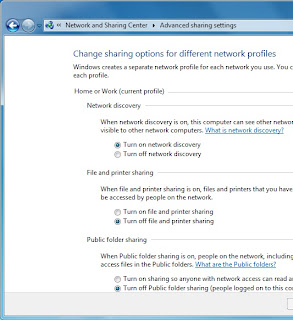
Manage advanced network sharing Settings
Start and type Manage advanced sharing Settings press Enter

If you want to share documents, photos, videos and music within your home use the Network Sharing Center to check your security settings are set right. The security options are clear and easy to understand with plain English throughout. To checkout your Network Sharing options click Start and type Manage advanced sharing Settings then press Enter, and make sure your settings are same like the image below.


You can share your internet connection, Printer(s) and files. The settings here allow you to set what's shared and who can see it.


You can also share folders by Right Clicking on one or more in Windows Explorer and selecting Share with in the context menu that appears.


You can choose from users on your PC and network who the folder is shared with,   or you can share a folder with your Homegroup.


Setting up a Homegroup.


Homegroups are new to Windows 7 and they're an excellent way to share Music, Pictures, Media files and also Printers with other PCs running Windows 7 on your home network. To create a Homegroup open Network and Internet from the Control Panel and then click on Create a Homegroup.


Alternately you can type Homegroup in Search box in Start Menu. The picture showing what kind of files and stuff you want to share with other computers, after choosing one or all, click Next.


Your Homegroup is now automatically created and  you will be given a password to type in computers you want to connect with this Homegroup network.


After creating a Homegroup network, remember this is your Host PC, and you can change any setting anytime by typing Homegroup in Search bar inside Start Menu.


How to Connect to Homegroup


Now its time to connect other computers to this Homegroup network, same way, open Homegroup by the way described above, The system will show all available Homegroups (remember the host PC must be switched ON). You will be asked for the password and then what files and documents you want to share from the new PC.


In Windows 7 Homegroup an additional and useful feature is the ability to stream media to other PCs and devices. This means music and video content can start playing on the other devices without being copied across to that device. It plays on the PC it's sat on and can be seen and heard on the other.


If you are using Wi-Fi - This is how you can make better your Streaming Video or Music:


If you use a Wi-Fi network in your home and want to stream and share video consider upgrading your Wi-Fi routher from the 802.11b or 802.11g to 802.11n standard. These codes are clearly labelled on products either at online stores on in the shops. Wireless N offers much greater bandwidth than previous standards. This means that video can be sent to other PCs on your network without any worries about it stuttering during playback.


Monday, 19 November 2012

6 Features - Your Windows 8 Tablet Must Have


Windows 8 Build for Touchscreen Devices? Yes, but do your new Windows 8 Tablet have these 7 features?


Before going to overview these features, first we talk a little about New Windows 8 Operating System. There are two main version of Windows 8 are available for touchscreen gadgets, "Windows RT and Windows 8". 


Basically Microsoft prepare and organize this new operating system for touchscreen devices, no doubt, and doesn't matter if its RT or 8 version, but Windows RT is slightly different than 8, as it designed to be more friendly with Touchscreen devices, Internet connectivity and as well for a device with longer battery life. Although some tablets makers ( I would say) don't like it, but if we go deep inside, Windows RT is viewed as more of a tablet operating system in the mold of Apple's iOS, while Windows 8 tablets may appeal to PC users looking for backward application compatibility. 


According to PC Advisor (a technology magazine publishers), "The cheapest RT tablet is Microsoft's Surface, which starts at �399." And "Windows 8 tablets will be competitive on price, however.


Lets talk about 6 features your new Windows 8 tablet must have.


1. Application compatibility


With a few exceptions, existing Windows applications will not work on RT. This is partly because ARM processors haven't previously supported major desktop Windows client OSes. But existing applications will work on Windows 8, as previous Windows OSes over the past few decades were written primarily for Intel or AMD processors. Microsoft has adopted a new application model with Windows RT and 8, and users will be able to download apps through the Windows Store.


2. Peripherals and accessory compatibility with RT


A lack of drivers may prevent some older peripherals, such as printers or cameras, from working with RT, but that doesn't mean your peripherals won't work. It's worth checking with device makers to see whether they have drivers for RT. Dell and HP have published compatibility lists for their printers.


Read here if you searching for your PC hardware drivers, compatible with Windows 8. "Where To Download the Latest Windows 8 Drivers for Popular Hardware"


3. Memory Limit


Windows RT is only 32bit, so tablets running the OS can draw on only up to 4GB RAM. Windows 8 tablets with Intel's Clover Trail Atom chip will also be only 32bit. However, tablets with Intel's PC-like Core processors run a 64bit version of Windows 8, and can handle more RAM and storage.


Tablets are adequately served with 32bit processors today but, with the usage of demanding applications growing, storage and memory needs will increase in mobile devices. ARM has taken a step ahead by announcing its ARMv8 64bit architecture, with chips likely to appear in 2014. Microsoft has not announced its 64bit plans for Windows RT.


4. ARM processors options


Windows RT tablets have already been announced with chips from nVidia and Qualcomm, which are based on ARM processors. Microsoft's Surface, Asus' Vivo Tab RT and Lenovo's IdeaPad Yoga 11 hybrid use nVidia's quad-core Tegra 3 processor, which may appeal to gamers and users looking for fast performance. Samsung's Ativ Tab and Dell's XPS 10 run Qualcomm's dual-core Snapdragon S4, which balances performance, battery life and connectivity.


5. Hardware limits


Windows RT tablets have only USB 2.0 ports. However, backward compatibility allows peripherals such as external storage devices with USB 3.0 ports to connect to RT tablets. The peripherals will work only if compatible with Windows RT, though, USB 3.0 ports are available in Windows 8 tablets running Intel's Core processors.


6. Enterprise Features


Dell and Samsung have highlighted enterprise features in RT tablets. Dell's XPS 10 tablet can be remotely disabled if lost or stolen, and software images and updates can be pushed to tablets. Dell has also included some security features such as TPM, a hardware-based cryptography and authentication technology. Samsung has included Microsoft Exchange and Cisco VPN support in its Ativ Tab.


Tuesday, 30 October 2012

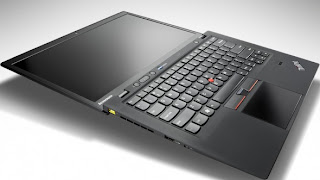
5 Top Features Your Ultrabook Must Have


5 Top Features Your Ultrabook Must Have if you prefer to buy one rather than MacBook Air.


According to your use and profession If you consider that Ultrabook suits you more than MacBook Air or you are interested to buy an Ultrabook rather than MacBook Air, so there are some actual features your Ultrabook must have.


According to style, features and something that called Trend, Apple's MacBook Air is a top Notebook but on other side Intel's super fast chipped Ultrabooks is more liked because of its compatibility and user friendly environment operating system (Windows).


So you have decided you want to buy an Ultrabook rather than a MacBook Air? Here are 5 top features to consider before making your purchase.


Quality Construction


Quality Construction - Ultrabook


Many of the unique or unusual characteristics about Ultrabooks come about because they're so thin, a height of three quarters of an inch, and even less in some cases. One of the most important of these is the systems' tendency to feel flimsy. Because most laptops don't sit at home on your desk all the time, you want the sturdiest on you can find, whether it's open or closed.


Keyboard


Keyboard - Ultrabook


Key travel on Ultrabooks is frequently shallow, after all, there's not a lot of room to house big, strong keys! This won't be a problem for everyone, but if you're a hard core typist or if you are going to need your laptop for work, you'll want to pay special attention to the keyboard. If you can, try typing on an Ultrabook you're interested in before you take it home to get an idea of how it feels beneath your fingers. You don't want to buy a notebook you won't enjoy typing on.


Port Selection


Port Selection - Ultrabook


The reduced height of ultrabooks causes problems with ports as well. Many systems simply don't have room for Ethernet ports, some have far fewer USB ports than you may be used to (may be only one or two), and still others may come with dongles that give you the ports but add inconvenience to the package. Knowing what you need, so you know what you'll need to put up with, is an especially good way to go here.


Touch Screen


Touch-Screen - Ultrabook


Although not a part of the standard ultrabook specs, and previously impossible to find on many systems, touch screens should now be considered a necessity. The new tile based Windows 8 interface was designed for touch, and the operating system just doesn't deliver the same experience without it. A laptop with a traditional touchpad will work, but it won't be anywhere near as intuitive. To get the most out of your Windows 8 Ultrabook, make sure it comes with a touch screen.


Wireless Display


Intel's Wireless Display technology (usually shortened to WiDi) lets you stream HD content over the air to your HDTV, rather than forcing you to connect your set to your laptop with an HDMI cable. You'll need a separate adapter, like Netgear's $100 Push2TV (pictured here), to make it work, but if you're really into entertainment you'll easily find WiDi capability worth the extra investment.


Saturday, 11 August 2012

Will Windows 8 be More Secure?


Martin Cooper takes a step back from all the Windows 8 fanfare and examines whether the cyber criminals will love or loathe Microsoft's new OS.


Window 8, Win8 phone and Surface tablets - it seems it's all happening over at Redmond. As Microsoft's readies its new operating system roll out, we've every right to get excited, but with all eyes distracted by the new system's sheen, it's easy to overlook the mundane but essential business of security.


Over last 12 to 18 months, security - of the lack thereof has cast a growing shadow over Windows and the antivirus firms we trust to keep us safe online. Indeed, some have suggested that the bad guys might be winning in the never-ending game of high stakes chess. So the question is, will Windows 8 let us sleep sounder in our beds?


Security as Standard


To help protect Windows machines Microsoft has for a long time offered its Security Essentials antivirus program as a free download. Despite this, it's reckoned that almost a quarter of all Windows 7 PCs have no anti-malware software installed.


To address this problem, Microsoft has opted to install Windows 8 Defender by default.


 Windows 8 Defender is a combined system. it's comparable with Security Essentials, with basic protective features thrown into combat common threats.


We certainly applaud the move, as it makes the initial hurdle that much tougher for virus writers. However, when PC Format asked Collin Davis, senior director of engineering at Symantec, about Defender, his response was unequivocal. "It's not enough".


Davis says circumventing Defender will become the virus writer's first mission. "It's just not worth their effort releasing malware that can't beat it," he warned. Speaking from California. Davis explained how the bad guys had breached Windows 7's security features and Security Essentials.


As Windows 7 and 8 have so much in common under the hood, Windows 8's default security isn't - in his view - likely to overly challenge malware writers.


Boot Level Protection


Dig a little deep into Windows 8 and the story doesn't seem so bleak. During the PC boot phase, Microsoft has made strides to see off future malware.


Booting through the BIOS has remained largely unchanged for nearly 30 years. At its heart is a chain of module that tare executed in order. The process begins with the BIOS waking up, taking in ROM-based operations and calling on the master boot record.


The chain culminates in the Windows kernal and drivers being loaded and run. If malware can penetrate this initial process, the next program to run can be corrupted. In short, no process after the point of exploitation can be trusted.


 Malware such as Mebroot, TidServ and StuxNet insert themselves into this critical chain of events, compromising Windows at a very low and fundamental level. From such a privileged position it makes itself hard to detect and difficult to remove.


To combat this problem, Windows 8 includes a trio of technologies which are known collectively as Secure Boot Architecture. The first component is the Unified Extensible Firmware Interface, or UEFI. Assuming that your hardware is current and supports it, UEFI should make the lives of the virus writers' considerably harder.


Liek the BIOS, a UEFI system executes a sequence of baton-passing modules that lead to the OS . In a UEFI system, however, modules are security-signed and each module must check the subsequent operation's signature before it allows the next process to execute. The UEFI chain can be updated with a white list of trusted certificates.


Features and Flaws


The UEFI system isn't without a couple of flaws. Though all contemporary Windows systems will come with it as standard, older PCs still use the BIOS loading process and therefore remain vulnerable. The UEFI certification system has also enraged Linux users, as it makes it difficult to install the open source OS.


The next technology of note in Windows 8 is Early Load Anti-Malware. According to Microsoft, "|ELAM| starts before other boot-start drivers, enables the evaluation of those drivers and helps the Windows kernal decide whether they should be initialized." It is, in essence, a way of detecting malware during the boot process and blocking it.


Most Malware that Runs on Windows 7 will work on Windows 8


Windows 8 is designed to boot very quickly through, which places limits on what ELAM can achieve.


The Windows 8 specification also limits the amount of memory it can consume. Because it runs so early in the boot sequence and under such limitations, Symantec has already stated that "ELAM does little to improve security".


Remote Attestation is an optional feature. Implementing it inevitably slows down the boot process, which may not prove very popular with PC builders. If you upgrade or tinker with your PC, the timing check system will also need to be recalibrate. Remote Attestation, therefore, looks like a feature that we think will be best suited to corporate environments where systems remain unchanged by design.


The Metro Question


Windows 8 is all about the Metro interface - a collection of tiles linked to programs. Simply sweep though the wall of information and images, then tap the program you want to run. If you don't have a table or other touch enabled devices, you can use the interface with a mouse and keyboard instead.


There are two versions of Windows 8 - one designed to run on x86 chips and another complied for low-power ARM processors. The PC firms we spoke to had little to say about the latter version, and it's unlikely that malware authors have been able to research it much either. If Windows RT (as the ARM version is called) becomes a success, it will probably become the focus of malware writers, but at the moment it's impossible to say.


Looking at the x86 incarnation, Collin Davis explained that Windows 7 and Windows 8 classic are very close cousins. Therefore, most malware that runs on Windows 7 will work on Windows 8. Metro is however a different beast to a degree.


The Janus OS


From a security perspective it's easy to think of Windows 8 as two operating systems; Metro and Classic. Neither will run programs designed for the other. Metro is the more restrictive of the two, as you'll only be able to get programs from Microsoft's App Store, but the separation between Metro and classic Windows isn't clear cut.


Each Metro app works in a sealed environment or sandbox, which means it can't interact with other programs. In other words, Metro works in much the same way as Apple's sandboxed iOS - an OS that has so far avoided any major security silver bullet though. it is, in the words of Davis, "One of many tools that works well if it's done well."


Asked if Microsoft has implemented its sandboxing well, Davis replied, "It's too soon to tell."


There is one major chink in Metro's sandbox Armour. Metro is much like Windows Media Center-an environment that effectively sits on top of Windows Classic. Davis says this means that "a Metro app can't attack a Classic app, but a Classic app can attach a Metro one."


He adds that developing malware for Metro would be no harder or more expensive for virus writers.


It seems then Windows 8 makes the business of securing your PC subtly different, yet largely the same. The same rules, requirements and risks apply, so users should install a well-rated security suite and keep it updated.


Source: PC Magazine [UK]


Friday, 10 August 2012

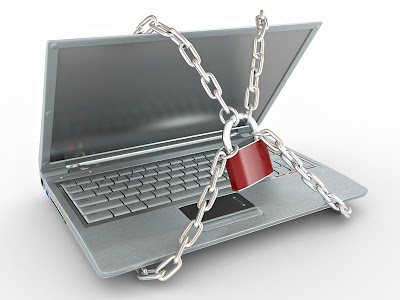
The LaptopLock - Free Tracking and Data Protection Solutions


The LaptopLock is a tracking software,  A free package offering a solid basis for your own security solution.


LaptopLock is a free offering that eschews a fancy interface for a simple, no-frills look. Signing up for the service is quick, you simply need to enter your email address and a password, and you're taken straight to the online control panel. From here you can add a computer, giving it a name for easy reference. From this page you can download software. 


During installation you can choose whether or not show a splash screen when the laptop starts up - it's nice that you're given the choice.


There are no tracking features with this program, so ideally it should be installed alongside a free service that does, such as Prey. What LaptopLock concentrates on is protecting your data if your laptop is lost or stolen; and is broken into three parts. The first security - here you can select the data you want LaptopLock to delete if you flag up your laptop as stolen via the web interface.


Choosing the files and folders is very easy, and you can select to securely delete the data, so that data recovery tools can't access it. If you're not too keen on the scorched earth policy, you can choose to encrypt the files instead.


The second part is notifications. You can select to show a message or play a sound when the missing laptop is in use. The final part is that you can select a program to launch when the laptop is reported stolen - a good chance to run a tracking program, or activate your webcam and upload the photos it takes. The laptop can also be marked as stolen, notifying a recovery team that will begin collecting evidence to hand over to the police. LaptopLock might appear simple, but with it you can make your own laptop security solution.


PC Format Magazine UK

Sunday, 8 April 2012

LibreOffice 3.5 Freeware Office Suite for your Business


A brief theory by PC Pro Magazine


A code overhaul and some necessary updates, but it�s still a long way behind Microsoft�s paid suite.


libreoffice3.5-PCSUPPORTER LibreOffice, the free suite spun off after developers lost faith in OpenOffice�s direction under Oracle, is building up a head of steam with its third major release in only 16 months. With the help of full time and volunteer �hackers�, The Document Foundation says LibreOffice 3.5 has had its 15 years� worth of code �renovated� with the aim of pulling away from its still-alive ancestor.


This aggressive approach to redevelopment means stability isn�t the immediate priority. This new release is recommended only for power users initially, with others advised to remain on the more stable 3.4 branch until kinks have been ironed out. We had one fatal crash during PC Pro testing, but PC Pro readers should be savvy enough not to worry too much. You also can�t upgrade from any version before 3.4.5, so you may need to completely uninstall to get 3.5.


Although the majority of the work is hidden beneath the surface, you�ll notice a few visible changes straight away. LibreOffice finally has an automatic update checker, which sounds a faintly ridiculous introduction in 2012, and it comes in a single MSI installer to make setup as simple as possible, to attract new users. If you were fearing a Microsoft style ribbon overhaul, there�s no sign of that, and if you�re coming across from Office 2003 things will feel familiar. It�s also largely consistent across platforms, with the OS X and Linux toolbars practically identical to Windows.


Writer is the core word processing application, and it comes with an improved built-in grammar checker, a more visual entry method for headers and footers, and a live word count. All are solidly implemented, yet hardly groundbreaking, and the live work count would be more useful if it weren�t in a separate pop-up dialog. There�s also an automatic word completer on by default, which quickly becomes irritating.


Word file compatibility is good, and we could open the latest Office 2007 & 2010 DOCX files with a range of formatting and styles; some Word specific features such as WordArt objects were lost, however, along with fancier fonts and effects. On the other side, saving a file in DOCX format within Writer saw a few less common fonts and some spacing fail to carry over to Word. Also be aware that if you save and encrypt your file in LibreOffice 3.5, it won�t be compatible with version 3.4.4 and earlier since the Blowfish encryption has been replaced by AES.


Calc, LibreOffice�s alternative to Excel, is a more complex beast, and one that it�s arguably more important to get right if the whole suite is to tempt users. Some basic but important updates have been made, such as allowing the formula input bar to expand beyond a single line, and adding support for 10,000 sheets in a single file. There�s now no limit on the number of conditional formatting rules you can apply, and the many pop-ups and dialogs are cleaner and easier to navigate.


For the most part Calc apes the layout and feel of Excel, and it does a good job, some would say a better job, given the simpler main toolbar. Our one gripe is the Save icon: we�re all for finding a replacement for the retro floppy disk, but it isn�t immediately obvious what LibreOffice�s tiny rectangle with a green arrow on top is meant to indicate.


As for the other components, Draw can now import and display Visio documents, and Impress will open the latest PPTX PowerPoint files. It did so with only one or two cosmetic alterations to our test presentations, the core elements were generally present and correct, even if a few of the fills and effects weren�t. Some new transitions and elements of SmartArt won�t appear properly either, but for basic slides Impress is a usable, if uninspiring, application.


The best thing we can say about LibreOffice 3.5 is that it�s undeniably better than the suite that spawned it, and it�s wonderful to see a proper movement driving is forward after a time when its future has looked uncertain. It�s a perfectly usable collection of software, and if you�re already a user of LibreOffice or OpenOffice it�s a worthy download.


The problem is that although the many updates are welcome, they�re generally updates that any paid office software has had for some time, and there�s still a long way to go before LibreOffice gets close to Microsoft�s beast.


Compatibility is getting much better, and the user experience is steadily improving, but few could argue it�s entirely intuitive and novice-friendly. And there�s the threat of Microsoft�s free Office Web Apps looming large, too.


If you�re looking to leave Office, LibreOffice 3.5 is becoming ever more viable, but it needs to keep going for a few more versions keep going for a few more versions at this rate.


David Bayon


Download LibreOffice 3.5


Tuesday, 28 February 2012

Android Phone to PC | Send files via Software Data Cable


Click here to DownloadHave you ever wanted to transfer files between your Android phone or other mobile device and your computer without the hassle of cables? Consider Software Data Cable (for Android) a free app providing file transfers via Wi-Fi.


The app has downloaded from the Android Market and tested on a Droid 2. Installation was no-fuss and took a scant few seconds.


The app�s main display buttons are Start Service, Stop & Exit, and Settings. While the display does show ads, that�s to be expected in a free app. Once running, my mobile device was assigned an IP address doled out from my wireless network�s DHCP server. The app then tells you to input the address displayed (the IP address assigned to the mobile device) into your computer. Once I put the address into my browser, a page opened up, listing the entire file directory of my Android device. On my Android, I also noticed the app showed the total and available storage capacity of my Droid 2 handy for knowing how much data you can transfer.


Back to the desktop side, because the Android�s directory is shown using FTP, you can also view the directory structure in Windows Explorer. It�s a great feature because you can copy a file from your desktop to your Android device using Explorer�s drag-and-drop capabilities or Ctrl+C & Ctrl+V (for copy & past in Windows Explorer). I copied a 25MB video from my Windows 7 PC to my Droid 2 in about a minute and 20 seconds.


I also was able to copy pictures from my phone to my laptop as easily as copying and pasting files between two folders in Windows.


Another great feature of this app is file and folder management on the device. I am not the most skilled at navigating my Droid�s data folders, always afraid it will accidentally delete something important. But Software Data Cable gives you a full graphical representation of all the files on a mobile device and option for copy, cut, and delete, as well as the ability to navigate to a parent directory and create new folders.


Software Data Cable is dead simple, and delivers great file management between a computer and Android device provided both can connect to the same wireless network. It�s an easy pick for a user spending more time on his Windows PC or Laptop while in home or in office because its simplicity and efficiently a great free app.


Social Links