PC Supporter: We are writing reviews & overviews about latest Technology, Gadgets, Social-networks, HP Printers, Operating Sys, PC Games & Wallpapers

Wednesday, 17 April 2013

Tablet PC Guide - PC Supporter


2013 is the age of Modern technology - Touch Screen computing & Smart gadgets - The Tablet PC Guide 2013.


It's clear now that tablet PCs are no fad. Beginning with the launch of the high-price, low-powered iPad 1 in April 2010 and culminating with the release of the low-price, high-powered Nexus 7 in July 2012, tablets have gone from being a niche, luxury-only computing peripheral to the latest must-have accessory.


To keep up with technology in 2013, you either have a tablet or you're buying one soon.


However, the fast pace of the tablet world means you can be forgiven for struggling to keep up with the changes to software, hardware, pricing and manufacturing. Sometimes it seems like there's a new tablet every other week, each better and more desirable than the last. Rather than leave you to fend for yourself, we've put together this six-page guide to tablets in 2013 - those that are on Shelves now, those that are being released soon, what you might want to look for if you're buying a tablet and what, if anything, you should avoid.


Here we are describing some features you must know if you are going to purchase a Tablet device.


What Screen Do I Want?


Tablet screens range in size from tech near pocket-sized 5" versions to a comparatively colossal 12 inches on the largest devices, but it is much more typical for screens to be between seven and 10.1 inches in size. Note that this is a diagonal measurement, so a 7" screen is actually has almost half of the visual real estate of a 10" screen (hence the moniker 'mini-tablet' to refer to devices in the 7" to 8" device class.)


While it's tempting to assume that 10" screens automatically better for being larger, there are benefits to 7" devices. Not only are they more portable (it's possible to comfortably hold them in one hand - something that may appeal to those planning to use a tablet as an e-reader), but they're often able to make better use of their technical capabilities, because they're managing fewer graphical resources.


Rather than the screen size, though, pay attention to the resolution. At a minimum, any device you consider buying in 2013 should have a resolution of at least 1024x768 (or similar), but the higher the resolution, the sharper text and images will be - especially when zoomed in. Apple�s Retina display remains the gold standard for tablets, offering a resolution of 2048x1536 on the iPad third- and fourth-generation�s 9.7� screen. The likes of the Nexus 7 and Kindle Fire HD are better-performing in the 7� device class, however, with their 1280x800 resolution easily trumping the iPad Mini�s 1024x768.


How Much Storage Is Appropriate?

Storage is one of the most widely varying factors in the tablet market. Tablets use solid-state drives, which are compact, quiet, shock-resistant and less power-hungry than hard drives. That said, the expense of SSD memory means that tablets therefore have much less space than modern laptops and desktops - typically between 4GB and 64GB.

The amount of built-in storage cannot be changed or upgraded, although many tablets do have slots for memory cards (usually micro-SD), which can be used to add removable storage. Some notable exceptions to this rule are Apple�s iPad range, no model of which has any provision for removable storage, the Kindle Fire, Kindle Fire HD and the Nexus 7, which will only support SD cards and USB flash drives after a combination of software modifications and additional hardware purchases.

The lack of expandable space on such popular devices is something of a contrivance designed to push consumers towards the more expensive, higher-capacity devices. However, the relatively small amounts of storage on modern tablets, combined with their ubiquitous internet connections, has led to an increase in the popularity of cloud storage systems. Apps such as DropBox and SkyDrive allow tablet users to utilise the internet for storage of data, minimizing the trouble associated with a lack of space.

Nonetheless, cloud storage is far from a perfect replacement, and even SD cards can prove fiddly. We�d suggest buying a device with at least 16GB if a model is available. That should be enough to last you the two to three years of the tablet�s life without becoming inadequate.


Does The Processor Matter?


When looking for a tablet, you can expect a number of other components as standard, but some vary from model to model or between manufacturers. The amount of memory and storage space often differs wildly, as does support for external devices and flash memory. Portability factors such as battery life, weight and screen size should also be considered. However, as with desktops and notebooks, the processor is perhaps the chief indicator of how a tablet PC will perform. The most popular tablets run on ARM-based Cortex chips, but a minority run on Intel chips, and there�s even variation within both brands.

Unlike Intel, which develops and manufactures its own processors, ARM Holdings only designs the chips, then licenses the designs for other companies to produce, meaning that there are often multiple variations of single architectures. The most popular chip at the moment is the Cortex-A9, which is the basis for the Apple A5 & A5X chips (used in the iPad 2 and iPad 3), the Nvidia Tegra 2 and 3 (used in the Google Nexus 7 and Microsoft Surface), and the TI OMAP 4 (used in the Kindle Fire and Kindle Fire HD).

While it�s fair to say that devices based on the same chipset have comparable performance to one another, the actual speeds experienced by the user will of course depend on the hardware and software resources available - in particular, the amount of RAM or model of GPU. It is, however, fair to say that the A9 devices are better than the A8 devices, and that the next ARM model (the Cortex-A15) will similarly outclass them both when manufacturers are ready to introduce it later this year.


Although ARM processors undoubtedly have the edge, there are a number of tablets running on Intel hardware, and it�s usually Intel, since unlike the desktop market, AMD does not have a major foothold producing Intel-compatible chips for tablets. Intel�s low-power and portable chips allow tablet PCs to run Windows 7 and 8, although at speeds closer to netbooks than laptops. More powerful tablets may contain full-size Core i5 processors, of the kind found in desktops and powerful notebooks. The increased performance capacity makes for a better Windows experience, but they are less compact and consume more power than mobile chips, meaning a worse battery life and a larger, less portable form factor.

For Windows users here are 6 features your Windows Tablet PC must have, before you go and select one to purchase.

Tuesday, 16 April 2013

Control Your PC from a Mobile Device - PC Monitor


Monitor a Laptop or Desktop PC from a Mobile Device


All it takes to get started is a smartphone or tablet, a data plan, the right app, and a few PCs in need of some love and attention.


by Marco Chiappetta - originally published at PC World Magazine 


If you are still wasting time trudging over to PCs to perform routine maintenance on them, check for software updates, and power them down at night, you haven't gotten with the program. Here's how to check on your PCs from anywhere, and save your business both time and money.


Get started: A number of remote PC management utilities are available, but we'll focus on an excellent tool called PC Monitor (www.mobilepcmonitor.com), which is free for three PCs. It works with Android, iOS, and Windows Phone OSs, as well as with Windows, Mac OS X, or Linux.


Install PC Monitor: Installing and configuring PC Monitor requires just a few steps, and the default setup options should be sufficient. Install the appropriate application on each system that you want to monitor.


The first time you launch the PC Monitor Manager, it will prompt you to create an account for connecting your PCs to your mobile devices (or for monitoring the systems via the Web). At your first login, enter a computer name and a group name for the system.


Customize your counters: To configure a custom monitor or counter (for CPU use, say), click the System tab, and work your way through the tabs in the pane: General, Services, Network, and so on. The Schedule Tasks tab lets you enable the monitor simply by ticking a task. Under the Performance Counters tab in the System pane, you can set up custom counters based on criteria that you specify.


Set up notification alerts: To get the most from PC Monitor and to have it notify you the moment something critical occurs, click the program's Notifications tab, and then click through the tabs in the resulting Notifications pane, enabling appropriate alerts as you go. These alerts may include when the computer starts up or shuts down, when particular users sign on, when someone plugs in a removable drive, or when a processor begins to overheat. More advanced notification options may require you to set up rules manually.


PC Monitor (Image Courtesy PC Monitor)


Grab the PC Monitor mobile app: After installing the PC Monitor app on the relevant PCs, you must install and configure the companion mobile app on your mobile devices.


Select a PC: Upon signing in to PC Monitor, you should see a list of your systems. Tap a system name in the list to bring up an overview of the system.


Monitor your PC from your couch: If you've enabled notifications already, all that remains is to explore the mobile app for monitoring and managing your systems. PC Monitor will send alerts if necessary, but the mobile app also provides real-time data.


After you tap a system name in the left pane of the app, the right pane will become populated with system details and buttons for performing various tasks, including such options as opening a command prompt, checking for OS updates, and restarting the monitored system. In addition, you can use the PC Monitor mobile app to send messages back to the associated desktop PC, if you want to alert the PC's user.


After the application is installed on a system, the PC Monitor service runs in the background. During our testing, the service rarely, if ever, consumed a detectable amount of CPU time, and it used no more than 44MB of RAM.


Monday, 15 April 2013

15 Google Calendar Tricks by PC Supporter


Power Through Your Schedule with 15 Google Calendar Tricks.


Whether you are a Calendar novice or a longtime user, these tips will give you even greater control and productivity.


This article was originally published in PC Magazine's monthly edition, and reason to publish it again on PC Supporter is only to share tricks of Google Calendar with our readers.


By Elsa Wenzel - PC World Magazine


This guide will help you take control of Google Calendar, whether you are a novice or a power user. Most of the tips apply both to the free Google Calendar and to the one that comes bundled with a paid Google Apps for Business subscription.


Work Faster -- and Focus


1. Use keyboard shortcuts: Google offers many keyboard shortcuts that can save your time. Most are pretty intuitive, for starters, press the letter C on the keyboard to create an event.


2. Find any date in a hurry: Visit the Labs via the gear icon. In the list that appears, enable Jump to date, and then click Save. Now the 'Jump to date' tool will appear to the right of your calendar, and you can punch in any day to do just that.


3. Customize calendar navigation: Go to the mini calendar to the left of the main calendar, and highlight the time frame you wish to see. Your main calendar will instantly adjust. To count your days in increments of, say, three weeks, click the gear icon on your calendar page, and in the General settings change 'Default view' and 'Custom view' to 3 Weeks. Once you save, you'll see 21 days at a time whenever you open your calendar.


4. Oversee your agenda: If you are a power user with lots of shared calendars and appointments, the Day view can be hard on the eyes. To bring up a plain-text list of events for the day ahead, click the Agenda button above your calendar.


5. Dim less-important events: To make pas and repeating future events look a little less vivid, click the gear icon, and on the Calendar Settings page find 'Even dimming'. Check Dim past events or Dim recurring future events (or both).


6. Hide weekends: To show just Monday through Friday, click the gear icon and select Hide weekends in the General settings.


7. Minimize all-day events: If out-of-office entries are clogging your calendar, click the tiny triangular arrow that appears below and to the left of the first day of the week. You'll see a synopsis such as '19 events' at the top, instead of a pile of text.


8. Keep work and play at your fingertips: to set up toggling between home and work calendars, click your email address in the upper-right corner of the Google Calendar page, and select Add account. Enter the details for your private Gmail address. When you click your email address in the corner, you'll see both accounts, and you can toggle between the two calendars.


Google Calendar - Make Scheduling Smarter


Make Scheduling Smarter


9. Schedule and even in one line: You can add an event in one line of text, without using the full Create Event form. Start by clicking anywhere in your calendar; then fill out the text field. By default, any event lasts an hour if you name a start time without an end time, and it lasts all day if you don't list a time at all.


10. See when a colleague is available: Expand the Other Calendars drop-down menu to the left of your calendar to see a list of your third-party calendars. If your company uses Google Apps for Business, start typing someone's email address, and Google will autofil the rest. Select an email address or spell it out to see that person's color-coded appointments.


11. Check whether everyone can meet: Click the gear icon to visit the Labs. Scroll down, select Enable for the Smart Re-scheduler, and click Save. In the calendar, select a meeting. In the Smart Re-scheduler module, click Find a new time. Google will load and display the team's calendars. If your company uses Google Apps for Business, you will also see suggestions for available rooms in the building.


12. Hide events you're not attending: Click the gear icon, and in the General tab of Calendar settings, uncheck Show events you have declined. Under 'Automatically add invitations to my calendar', you can choose not to see those events unless you've accepted the invitation.


13. Let Google Calendar RSVP for you: Click the gear icon, enable Automatically decline events, and save. People who invite you to events at times when you're already booked will get an instant reply.


14. Don't miss the next meeting: Blare a reminder to yourself about your next meeting by adding a module to your calendar. To do so, visit Labs from the gear menu and click Enable for 'Next Meeting'.


15. See who's free or busy: In the gear drop-down menu, choose Labs to enable the 'Free or busy' add-on. Type a colleague's email address there to get an always-on 'free' or 'busy' status message.


Tuesday, 25 December 2012

Untag Facebook Photos and Share Your Year in Review


Facebook is a well-known Social place, and the users definitely know the basic usage of it, like how to update your status or upload a picture or video etc.


But still there are users who don't like to change anything inside "Account Settings" or "Privacy Settings", just because they worrying about that change or because they don't have time or knowledge to do, likely to say those people doesn�t actually gave much importance to their Facebook account. Possibly or certainly a time comes those users should take note of that mistake they are doing. Mistake is when you don't know �What you share and with whom you share?�


So you should go and checkout the Facebook Data Policy if you aren�t a bit silly Facebook user.


The instruction below is for the users who are tagged in many photos inside Facebook Pages or tagged by some of their friends and now they want to be untagged from all those photos at once.


We aren�t describing all the Privacy or Account settings inside this post, we only shows you how to make your "Year in Review" shareable with your Friends and Family and how to get rid of those tagged �Photos of You� or �Photos posted by others� you don�t like to be there.


1. Log in to Facebook Account, and click on �Settings� button in right upper corner, and click on �Privacy Settings�. (on the left sidebar make sure you are on the Privacy tab).


2. Inside �Who can see my stuff� category of settings, there is some text showing �Review all your posts and things you�re tagged in�, and click on �Use Activity Log� infront of that text.


Facebook_Activity_Log_Right_Sidebar
Right Sidebar -"Photos of You"

3. Now you can see �Activity Log� page where you can see your activities, like your posts, Posts you�re tagged in, Posts by others, Posts you�ve hidden etc.


4. On the left sidebar click on �Photos�, this will shows all the Photos recently showing on your timeline, Photos uploaded by you and also Photos you are tagged in, but you just need to click on �Photos of You�, because those photos uploaded by others and you just tagged in.


5. Now you can select each Photo by click on the selection box infront of each one and click on Report/Remove Tag button on the top to Un-tag yourself from Photos or Videos you don't like.


Make sure you can Un-tag 10 Photos or Videos at a time, and those photo or videos will no longer be shown on your timeline as well as those photos will not be shown in your �Year in Review� (a new feature available for every account on Facebook), and you can ready your Year in Review to be shared with your Friends or Family.


If you get something helpful from this post, please share with others. And your precious wordings will definitely be appreciated. 


If you want to Turn On Tag Reviews read here "Turn On Tag Reviews On Facebook To Avoid Being Tagged Automatically"


Thursday, 6 December 2012

How to Set Up a Homegroup in Windows 7


Sharing Files, Media and Folders on any Network now a days isn't a big deal for many of Windows 7 users, but some users still find it hard to connect to Home Network to Share files with other Computers.


Definitely you can get you Answer on Google or else where very easily within a few minutes to how to get create and connect to Home Network, but while you searching and you are not a regular or pro user you will   find some articles which are written for Pro users, and you will find this hard to follow and get connected.


Here we are going to share Mr. Mike Halsey (www.thelongclimb.com) article, who is describing the connectivity to HomeGroup Network really simply, and hope after reading this you will be able to connect your Computer to other computers situated at your Home or Office.


Before going to the process lets read a quick tip.


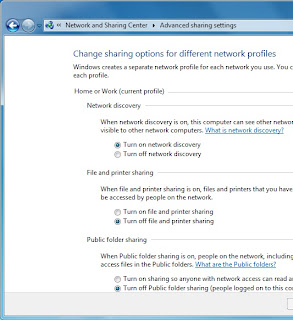
Manage advanced network sharing Settings
Start and type Manage advanced sharing Settings press Enter

If you want to share documents, photos, videos and music within your home use the Network Sharing Center to check your security settings are set right. The security options are clear and easy to understand with plain English throughout. To checkout your Network Sharing options click Start and type Manage advanced sharing Settings then press Enter, and make sure your settings are same like the image below.


You can share your internet connection, Printer(s) and files. The settings here allow you to set what's shared and who can see it.


You can also share folders by Right Clicking on one or more in Windows Explorer and selecting Share with in the context menu that appears.


You can choose from users on your PC and network who the folder is shared with,   or you can share a folder with your Homegroup.


Setting up a Homegroup.


Homegroups are new to Windows 7 and they're an excellent way to share Music, Pictures, Media files and also Printers with other PCs running Windows 7 on your home network. To create a Homegroup open Network and Internet from the Control Panel and then click on Create a Homegroup.


Alternately you can type Homegroup in Search box in Start Menu. The picture showing what kind of files and stuff you want to share with other computers, after choosing one or all, click Next.


Your Homegroup is now automatically created and  you will be given a password to type in computers you want to connect with this Homegroup network.


After creating a Homegroup network, remember this is your Host PC, and you can change any setting anytime by typing Homegroup in Search bar inside Start Menu.


How to Connect to Homegroup


Now its time to connect other computers to this Homegroup network, same way, open Homegroup by the way described above, The system will show all available Homegroups (remember the host PC must be switched ON). You will be asked for the password and then what files and documents you want to share from the new PC.


In Windows 7 Homegroup an additional and useful feature is the ability to stream media to other PCs and devices. This means music and video content can start playing on the other devices without being copied across to that device. It plays on the PC it's sat on and can be seen and heard on the other.


If you are using Wi-Fi - This is how you can make better your Streaming Video or Music:


If you use a Wi-Fi network in your home and want to stream and share video consider upgrading your Wi-Fi routher from the 802.11b or 802.11g to 802.11n standard. These codes are clearly labelled on products either at online stores on in the shops. Wireless N offers much greater bandwidth than previous standards. This means that video can be sent to other PCs on your network without any worries about it stuttering during playback.


Monday, 19 November 2012

6 Features - Your Windows 8 Tablet Must Have


Windows 8 Build for Touchscreen Devices? Yes, but do your new Windows 8 Tablet have these 7 features?


Before going to overview these features, first we talk a little about New Windows 8 Operating System. There are two main version of Windows 8 are available for touchscreen gadgets, "Windows RT and Windows 8". 


Basically Microsoft prepare and organize this new operating system for touchscreen devices, no doubt, and doesn't matter if its RT or 8 version, but Windows RT is slightly different than 8, as it designed to be more friendly with Touchscreen devices, Internet connectivity and as well for a device with longer battery life. Although some tablets makers ( I would say) don't like it, but if we go deep inside, Windows RT is viewed as more of a tablet operating system in the mold of Apple's iOS, while Windows 8 tablets may appeal to PC users looking for backward application compatibility. 


According to PC Advisor (a technology magazine publishers), "The cheapest RT tablet is Microsoft's Surface, which starts at �399." And "Windows 8 tablets will be competitive on price, however.


Lets talk about 6 features your new Windows 8 tablet must have.


1. Application compatibility


With a few exceptions, existing Windows applications will not work on RT. This is partly because ARM processors haven't previously supported major desktop Windows client OSes. But existing applications will work on Windows 8, as previous Windows OSes over the past few decades were written primarily for Intel or AMD processors. Microsoft has adopted a new application model with Windows RT and 8, and users will be able to download apps through the Windows Store.


2. Peripherals and accessory compatibility with RT


A lack of drivers may prevent some older peripherals, such as printers or cameras, from working with RT, but that doesn't mean your peripherals won't work. It's worth checking with device makers to see whether they have drivers for RT. Dell and HP have published compatibility lists for their printers.


Read here if you searching for your PC hardware drivers, compatible with Windows 8. "Where To Download the Latest Windows 8 Drivers for Popular Hardware"


3. Memory Limit


Windows RT is only 32bit, so tablets running the OS can draw on only up to 4GB RAM. Windows 8 tablets with Intel's Clover Trail Atom chip will also be only 32bit. However, tablets with Intel's PC-like Core processors run a 64bit version of Windows 8, and can handle more RAM and storage.


Tablets are adequately served with 32bit processors today but, with the usage of demanding applications growing, storage and memory needs will increase in mobile devices. ARM has taken a step ahead by announcing its ARMv8 64bit architecture, with chips likely to appear in 2014. Microsoft has not announced its 64bit plans for Windows RT.


4. ARM processors options


Windows RT tablets have already been announced with chips from nVidia and Qualcomm, which are based on ARM processors. Microsoft's Surface, Asus' Vivo Tab RT and Lenovo's IdeaPad Yoga 11 hybrid use nVidia's quad-core Tegra 3 processor, which may appeal to gamers and users looking for fast performance. Samsung's Ativ Tab and Dell's XPS 10 run Qualcomm's dual-core Snapdragon S4, which balances performance, battery life and connectivity.


5. Hardware limits


Windows RT tablets have only USB 2.0 ports. However, backward compatibility allows peripherals such as external storage devices with USB 3.0 ports to connect to RT tablets. The peripherals will work only if compatible with Windows RT, though, USB 3.0 ports are available in Windows 8 tablets running Intel's Core processors.


6. Enterprise Features


Dell and Samsung have highlighted enterprise features in RT tablets. Dell's XPS 10 tablet can be remotely disabled if lost or stolen, and software images and updates can be pushed to tablets. Dell has also included some security features such as TPM, a hardware-based cryptography and authentication technology. Samsung has included Microsoft Exchange and Cisco VPN support in its Ativ Tab.


Wednesday, 14 November 2012

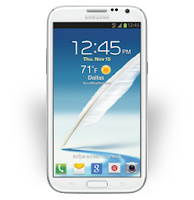
Samsung Galaxy Note-II - Smartphone or Tablet


Comparing to a Tablet Device, Samsung Galaxy Note - II have everything identical, specially a 5.5 inches of large display screen. 


Samsung Galaxy Note-II

A smartphone this broad and tall falls more naturally into two-handed operation actually. There is no denying this is a large device, even by modern mobile standards. It's around 151mm high and 81m wide, and 9.9mm thick. Weighted including a cover flap that wraps around the front, it was 214g, which is not insubstantial.


According to physical functionality, it seems very comfortable to operate with two hands, one to hold and one to tap. Samsung offers an option within Android's Settings titled 'One handed operation', which places the onscreen keyboard, Dial-pad and Calculator to one side. But as still its Dial-up icons are unreachable to single hand thumb, you should dial it with two hands.


Structure and Key Feature


The build is plastic, but good, feeling weighty and all of a piece in the hand. The screen quality is excellent, and it doesn't reveal the same over ripe coloring of other Samsung Super AMOLED displays.


Camera


Picture quality from the rear 8Mp camera is not bad, high contrast areas show purple fringing, although the camera is fast in operation. Recorded HD video is usable, but its suffers from focus hunting issues even in good light. Shot footage looked smeary on even slow pans.


 Interior Specifications


by PC Advisor Magazine


The Note II's innards are very similar to those of the Galaxy S III. Inside is a Samsung Exynos 4412 SoC based on a quad-core ARM, but clocked at 1.6- rather than 1.4GHz. This is the fastest clocked ARM smartphone we've seen and, combined with Android's latest 4.1 Jelly Bean OS, it bodes well for performance.


Jelly Bean promises smoother graphics, here powered by an ARM Mali-400 MP GPU. It's relatively speedy, and faster than the nVidia Tegra 3, if wel short of the fastest available mobile graphics solutions.


In our performance tests, the Note II approached the capability of the iPhone 4S. It managed 17fps in the Egypt HD test, against 19fps for the previous generation Apple phone. The iPhone 5 played the same benchmark at 38fps. Other test results like Gauge Processor speed test and SunSpider JavaScript test also was better then iPhone 5, which is remarkable.


Battery Life is also not bad, as PC Advisor Magazine says "We found battery life good enough to last two days of sporadic use, in park thanks to a large 11.78Wh removable battery packed inside".


Social Links