PC Supporter: We are writing reviews & overviews about latest Technology, Gadgets, Social-networks, HP Printers, Operating Sys, PC Games & Wallpapers

Sunday, 11 May 2014

How to Choose the Right Tablet? | PC Supporter


How to Choose the Right Tablet? Windows: Android, Apple, or

By Wendy Sheehan Donnell

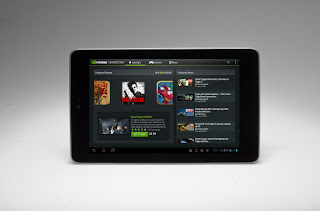
It's difficult to remember a time before tablets, but it's been four short years since the original Apple iPad hit the scene, and the current tablet market was born. Since then, we've seen scores of manufacturers trying to snag a slice of the tablet pie. And the game is finally getting interesting: For the first time in 2013, Android tablet sales overtook the iPad. Growth is so rapid in the segment that some analysts claim tablets will make up half the PC market in 2014. There's no denying the tablet is here to stay.
But which tablet is right for you? Whether you're eyeing an iPad, one of the many Android tablets available, or a Windows model, here are the key factors you need to consider when shopping for a tablet:

Friday, 9 May 2014

How much RAM do you really need


 How much RAM do you really need

It doesn't always needed to add more memory for better performance or in other words more memory doesn't always means better performance. In fact, you may need less RAM than you think. Darien Graham-Smith at PC Pro 2014 explains.
Typically, today's budget PC's come with 4GB of RAM. A mid-range configuration may offer double that, and high-end gaming systems and workstations go as high as 16GB.
There's no doubt which way the wind's blowing, either: Windows 8 supports up to 128GB of physical memory (assuming your're running the 64-bit edition), while Windows 8 Pro can go up to 512GB.
Does anyone really need this much RAM? Memory isn't as expensive as it used to be, but there's obviously no point paying for gigabytes of RAM from which you'll receive no material gain.

Thursday, 8 May 2014

How to Install HP LaserJet 1320 Printer in Windows 7?


How to Install Hp LaserJet 1320 Printer in Windows 7?

Today Windows 7 is the most popular Operating System using in Homes & Offices all over. In early days due to non-compatibility and support to many Devices (like Printers, Scanners etc.), Windows 7 was not a Primary Operating System according to Professional’s remarks.
Many companies made their devices compatible to this New Operating System with updating their Software and Drivers for Devices like Printer, Scanners etc., some of other companies made brand new Devices for new operating system. But some devices were far behind due to non-compatibility with Windows 7, and users were waiting for new release of drivers.

Saturday, 1 February 2014

You Love Music - You would Like BedPhones


Before you settle in for your winter hibernation, slip on a pair of Bedphones. These foam covered headphones are less than a quarter inch thick and are designed to be worn cofortably for extended periods of time a full night's slumber, for example. The cable runs down your back, not front, and the memory wire earhooks mold to ears of all sizes.


With the free Bedphones app for Android and iOS you can set a timer to fade out your music as you drift off to dreamland. But if you love to listen your favorite track tens of time repeatedly, who wants to turn it off and go to dreamland?

Find details here: http://www.bedphones.com 

Friday, 31 January 2014

How much RAM do you really need - PC Supporter


It doesn't always needed to add more memory for better performance or in other words more memory doesn't always means better performance. In fact, you may need less RAM than you think. Darien Graham-Smith at PC Pro 2014 explains.


Typically, today's budget PC's come with 4GB of RAM. A mid-range configuration may offer double that, and high-end gaming systems and workstations go as high as 16GB.


There's no doubt which way the wind's blowing, either: Windows 8 supports up to 128GB of physical memory (assuming your're running the 64-bit edition), while Windows 8 Pro can go up to 512GB.


Does anyone really need this much RAM? Memory isn't as expensive as it used to be, but there's obviously no point paying for gigabytes of RAM from which you'll receive no material gain.


Does more Memory means Faster Performance?


Many people assume that adding memory makes a PC significantly faster, and in some cases it does. Sticking an extra pair of DIMMs into a motherboard won't change the speed at which the processor executes code, but it can help in other ways, especially on older systems with 2GB or less RAM, since adding RAM reduces the need for Windows to rely on "virtual memory".


Simply put, virtual memory is a file on your hard disk that serves as temporary storage when your PC's "real" memory is full. Virtual memory makes it possible, for example, to have several heavyweight applications running at once, even if they won't fit simultaneously in RAM. When you switch from one to another, Windows quickly swaps the relevant data from the disk into real memory, which explains why the virtual memory file is sometimes called a swap file. If you've set Windows Explorer to show hidden files, you can see the swap file in the root directory of your system disk; depending on which version of Windows you're using, it will be called PAGEFILE.SYS or SWAPFILE.SYS.


The process of shuttling data to and from the swap file slows things down, especially if you're using an old-school mechanical disk. the situation gets worse if you try to open a new program when your memory is full: the disk head ends up repeatedly "thrashing" back and forth across the disk as it tries to read the data into memory while simultaneously moving older information into the swap file. the result is a slow and unresponsive PC.


If you've ever used Windows XP on a machine from the late 1990s or early 2000s, you'll almost certainly have sat through your fair share of disk-thrashing sessions.


Although contemporary 3-bit PCs were theoretically able to address up to 4GB or RAM, memory was expensive, and a high-end system may have come with only 256MB installed. A reliance on virtual memory was a fact of life - hence the rule of thumb that you should install as much memory as you can afford.


Diminishing Returns


This rule is much less applicable today than it was a decade ago. Today, a new PC will come with multiple gigabytes of RAM, so Windows relies much less on virtual memory. It's almost certain to come with a solid-state system drive rather than a mechanical one, making the process of swapping data between RAM and virtual memory much smoother. Also, since SSDs have no problem reading from flash memory cell while writing to a different one, it also effectively eradicates the problem of "thrashing".


All the same, real memory is still faster. While a high-end SSD might read and write data at around 600MB/sec, a DDR3 DIMM running at 1,333MHz can transfer more than 10GB/sec (you can calculate the peak transfer rate of a DDR3 memory module in megabytes per second by multiplying its operating frequency by eight). This means your system will be more responsive if you can fit all your applications and documents into physical memory.


There's a second benefit to having plenty of RAM on hand. Ever since Vista, Windows has included an under-the-bonnet feature called SuperFetch that tries to predict which applications and libraries you're most likely to want to use. It also preemptively loads them into RAM in the background while the system is idle. The more spare RAM you have, the more likely it is that the next application you open will have been pre-cached, enabling it to spring up almost instantly, rather than having to load from the disk. For an ullustration of the benefit you can gain from extra RAM.


How much RAM is enough?


SuperFetch will use as much memory as you can throw at it, but since it intelligently anticipates which program you're most likely to open next, it shouldn't require dozens of gigabytes to be effective. Also, once you have enough RAM to fit your entire workload into memory, virtual memory becomes a non-issue. 


The question is: how much memory do you need to achieve peak performance without wasting money?


There's no "one size fits all" answer to that question. Everyone's workload is different, and while you may have a good idea of your current requirements, it isn't always possible to anticipate what you'll need tomorrow. However, you can get an idea of how your usage might stack up by exploring how much memory is used in various scenarios.


Conclusion


Even during our Real World Multi-apps test which opens several major applications at once -- our test system's total RAM usage never topped 4GB. This means Windows didn't need to fall back on virtual memory at any point. As such, installing more RAM would yield only a modest speed booster.


However, this doesn't necessarily mean you should avoid paying for more than 4GB. If your work is unusually demanding -- such as processing 4K video files, or working with very large databases -- you may well need more memory than this. Also, there's a distinct possibility that, as memory prices continue to fall, everyday applications will evolve to take advantage of ever-higher quantities of RAM. What's more, many ultra-slim laptops aren't user-upgrade-able, so if you're buying a new system today, you might reasonably opt for an 8GB model, just to be assured of a degree of future-proofing.


For current tasks, however, adding memory beyond 4GB seems to yield sharply diminishing returns: we've yet to see any application - outside of extremely specialist data-processing tasks -- that genuinely benefits from 16GB. It seems the days when you could never have enough RAM are, thankfully, behind us.


Wednesday, 1 May 2013

Now Share Photos to Instagram from your PC


Post or Upload your best Photos to Instagram directly from your Local Hard drive on PC, no need of a smartphone, never mind if those Pictures are taken by a Digital Camera.


About Instagram by Instagram, "Instagram is a fun and quirky way to share your life with friends through a series of pictures. Snap a photo with your mobile phone, then choose a filter to transform the image into a memory to keep around forever. We're building Instagram to allow you to experience moments in your friends' lives through pictures as they happen. We imagine a world more connected through photos."


Never mind if you don't have a smartphone to install Instagram app on it, and capture photos and then upload the best ones to Instagram and share with your friends. Now you can upload every Photo of your choice from your Local Hard Drive on your PC, without having any problem nor breaking Terms & Laws of  the Service.


All you need a PC having photos you want to share on Instagram. By following my steps, first thing first, WE ARE GOING TO INSTALL ANDROID APP PLAYER ON YOUR PC to enable to download and install Instagram, and have a fun. If you agree, follow me.


I don't know very much about Android app players, but I will suggest you the one I tried and currently in use on my PC.


First you can see my Profile on Instagram, I upload all these photos from my PC using Android App Player called BlueStacks App Player  (http://www.instagram.com/shafky).


Here is a short introduction about BlueStacks App Player, "BlueStacks App Player lets you run apps from your phone fast and full screen on Windows and Mac".


Time to go ahead, Download and Install BlueStacks App Player on your PC, (available for both PC & Mac), but I only can guide PC users, as I am a PC user.


You should use Instagram App before, or you should know about Android platform to how to download apps from Google Play Store, so I will go further, but if you still having problem against BlueStacks Apps Player installation, you can ask BlueStacks App Player help forum here (https://getsatisfaction.com/bstk).


You need a Google account to connect and sync with Google Play Store. Another thing you should know about BlueStacks App Player that some people having problem with their current location (IP Location) on BlueStacks App Player. If BlueStacks App Player couldn't locate your Local IP Location, don't worry "You still can upload photos of your choice", as this problem is still unsolved from BlueStacks App Player help forum, I also have the same problem and I also contact BlueStacks App Player, but anyhow I can still upload Photos to my Instagram account (but I can't add these photos to Photo Map because my location is not readable by BlueStacks App Player, I don't care, I only need to upload pictures to my Instagram, and that's all).


1. After successfully downloading and installing both BlueStacks App Player on your PC and Instagram app on App Player, you almost done but time to change some Registry keys so your App Player can find your photos on your local hard drive from your PC.


2. I'm using Windows 7. Go to "Start" and search for "regedit" and press Enter.


3. Registry Editor will open, now inside registry editor go to "HKEY-LOCAL_MACHINE > SOFTWARE > BlueStacks > Guests > SharedFolder > 1", 


4. Right click > Modify... the "Name" string value. Change value data to folder name you want to add to your App player, for example mine is "Wallpapers & Pictures".


5. Again Right click > Modify... the "Path" string value. This time change value data to path of that specific folder, for example mine is "J:\Wallpapers & Pictures".


Same way you can attach more then one folder to BlueStacks App Player by changing the string values of folders named 2 and 3 and 4 etc, inside registry editor (HKEY-LOCAL_MACHINE > SOFTWARE > BlueStacks > Guests > SharedFolder)


You almost done here, but a last step is...


6. Additionally, you must need an app to reach to the specific folder you attach to your BlueStacks App Player, for this reason I am using "ES File Explorer" you can download it from Google Play Store using BlueStacks App Player and install it.


7. Now open ES File Explorer, go to SD Card and find the folder "bstfolder", open it, inside you will find same folder that we recently attached to BlueStacks App Player (Wallpapers & Pictures), open it and find all your photos inside.


All done, now open Instagram app on your BlueStacks App Player, Log in and upload (or even you can capture photos via your webcam) photos by clicking the gallery button (on right side with camera button in the middle), it will ask you from where to upload a picture, select ES File Explorer > SD Card > bstfolder > Wallpapers & Pictures > and choose a picture you want to upload to your Instagram app.


The technique isn't very complicated nor simple but for me its very important to run Instagram app and upload pictures everytime, as recently I don't have my smartphone.


Hope you will find this article supportive if you can't live without Instagram.


Note: When you open Instagram app on BlueStaks App Player, if you cannot see the middle camera button and other buttons, Go to Setting > Change App Size > and click Default size for Instagram on BlueStacks App Player, as BlueStacks app player support both Tablet & default app sizes.


Wednesday, 17 April 2013

Tablet PC Guide - PC Supporter


2013 is the age of Modern technology - Touch Screen computing & Smart gadgets - The Tablet PC Guide 2013.


It's clear now that tablet PCs are no fad. Beginning with the launch of the high-price, low-powered iPad 1 in April 2010 and culminating with the release of the low-price, high-powered Nexus 7 in July 2012, tablets have gone from being a niche, luxury-only computing peripheral to the latest must-have accessory.


To keep up with technology in 2013, you either have a tablet or you're buying one soon.


However, the fast pace of the tablet world means you can be forgiven for struggling to keep up with the changes to software, hardware, pricing and manufacturing. Sometimes it seems like there's a new tablet every other week, each better and more desirable than the last. Rather than leave you to fend for yourself, we've put together this six-page guide to tablets in 2013 - those that are on Shelves now, those that are being released soon, what you might want to look for if you're buying a tablet and what, if anything, you should avoid.


Here we are describing some features you must know if you are going to purchase a Tablet device.


What Screen Do I Want?


Tablet screens range in size from tech near pocket-sized 5" versions to a comparatively colossal 12 inches on the largest devices, but it is much more typical for screens to be between seven and 10.1 inches in size. Note that this is a diagonal measurement, so a 7" screen is actually has almost half of the visual real estate of a 10" screen (hence the moniker 'mini-tablet' to refer to devices in the 7" to 8" device class.)


While it's tempting to assume that 10" screens automatically better for being larger, there are benefits to 7" devices. Not only are they more portable (it's possible to comfortably hold them in one hand - something that may appeal to those planning to use a tablet as an e-reader), but they're often able to make better use of their technical capabilities, because they're managing fewer graphical resources.


Rather than the screen size, though, pay attention to the resolution. At a minimum, any device you consider buying in 2013 should have a resolution of at least 1024x768 (or similar), but the higher the resolution, the sharper text and images will be - especially when zoomed in. Apple�s Retina display remains the gold standard for tablets, offering a resolution of 2048x1536 on the iPad third- and fourth-generation�s 9.7� screen. The likes of the Nexus 7 and Kindle Fire HD are better-performing in the 7� device class, however, with their 1280x800 resolution easily trumping the iPad Mini�s 1024x768.


How Much Storage Is Appropriate?

Storage is one of the most widely varying factors in the tablet market. Tablets use solid-state drives, which are compact, quiet, shock-resistant and less power-hungry than hard drives. That said, the expense of SSD memory means that tablets therefore have much less space than modern laptops and desktops - typically between 4GB and 64GB.

The amount of built-in storage cannot be changed or upgraded, although many tablets do have slots for memory cards (usually micro-SD), which can be used to add removable storage. Some notable exceptions to this rule are Apple�s iPad range, no model of which has any provision for removable storage, the Kindle Fire, Kindle Fire HD and the Nexus 7, which will only support SD cards and USB flash drives after a combination of software modifications and additional hardware purchases.

The lack of expandable space on such popular devices is something of a contrivance designed to push consumers towards the more expensive, higher-capacity devices. However, the relatively small amounts of storage on modern tablets, combined with their ubiquitous internet connections, has led to an increase in the popularity of cloud storage systems. Apps such as DropBox and SkyDrive allow tablet users to utilise the internet for storage of data, minimizing the trouble associated with a lack of space.

Nonetheless, cloud storage is far from a perfect replacement, and even SD cards can prove fiddly. We�d suggest buying a device with at least 16GB if a model is available. That should be enough to last you the two to three years of the tablet�s life without becoming inadequate.


Does The Processor Matter?


When looking for a tablet, you can expect a number of other components as standard, but some vary from model to model or between manufacturers. The amount of memory and storage space often differs wildly, as does support for external devices and flash memory. Portability factors such as battery life, weight and screen size should also be considered. However, as with desktops and notebooks, the processor is perhaps the chief indicator of how a tablet PC will perform. The most popular tablets run on ARM-based Cortex chips, but a minority run on Intel chips, and there�s even variation within both brands.

Unlike Intel, which develops and manufactures its own processors, ARM Holdings only designs the chips, then licenses the designs for other companies to produce, meaning that there are often multiple variations of single architectures. The most popular chip at the moment is the Cortex-A9, which is the basis for the Apple A5 & A5X chips (used in the iPad 2 and iPad 3), the Nvidia Tegra 2 and 3 (used in the Google Nexus 7 and Microsoft Surface), and the TI OMAP 4 (used in the Kindle Fire and Kindle Fire HD).

While it�s fair to say that devices based on the same chipset have comparable performance to one another, the actual speeds experienced by the user will of course depend on the hardware and software resources available - in particular, the amount of RAM or model of GPU. It is, however, fair to say that the A9 devices are better than the A8 devices, and that the next ARM model (the Cortex-A15) will similarly outclass them both when manufacturers are ready to introduce it later this year.


Although ARM processors undoubtedly have the edge, there are a number of tablets running on Intel hardware, and it�s usually Intel, since unlike the desktop market, AMD does not have a major foothold producing Intel-compatible chips for tablets. Intel�s low-power and portable chips allow tablet PCs to run Windows 7 and 8, although at speeds closer to netbooks than laptops. More powerful tablets may contain full-size Core i5 processors, of the kind found in desktops and powerful notebooks. The increased performance capacity makes for a better Windows experience, but they are less compact and consume more power than mobile chips, meaning a worse battery life and a larger, less portable form factor.

For Windows users here are 6 features your Windows Tablet PC must have, before you go and select one to purchase.


Social Links